This guide covers the main POS flows with dark-theme screenshots.
Login
Before using the app, sign in with your credentials.
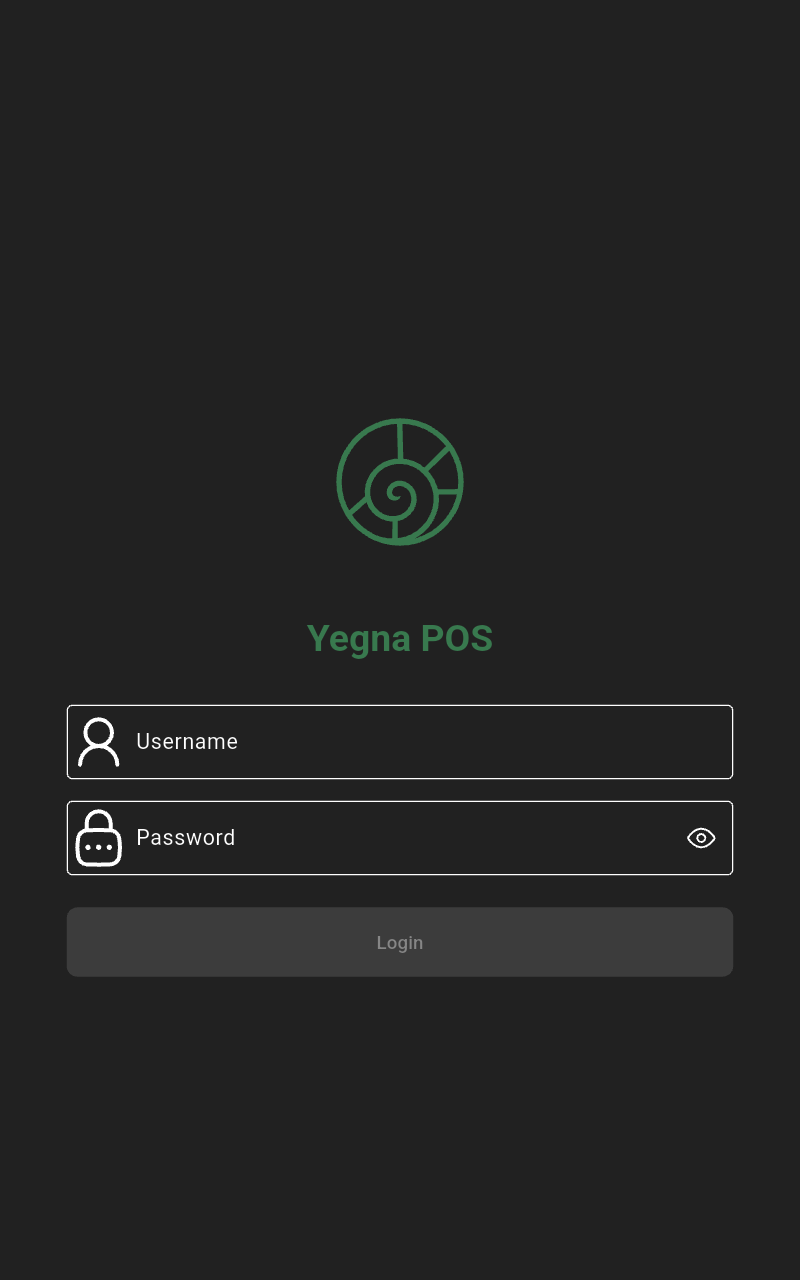 | Enter your username and password, then tap the Login button. |
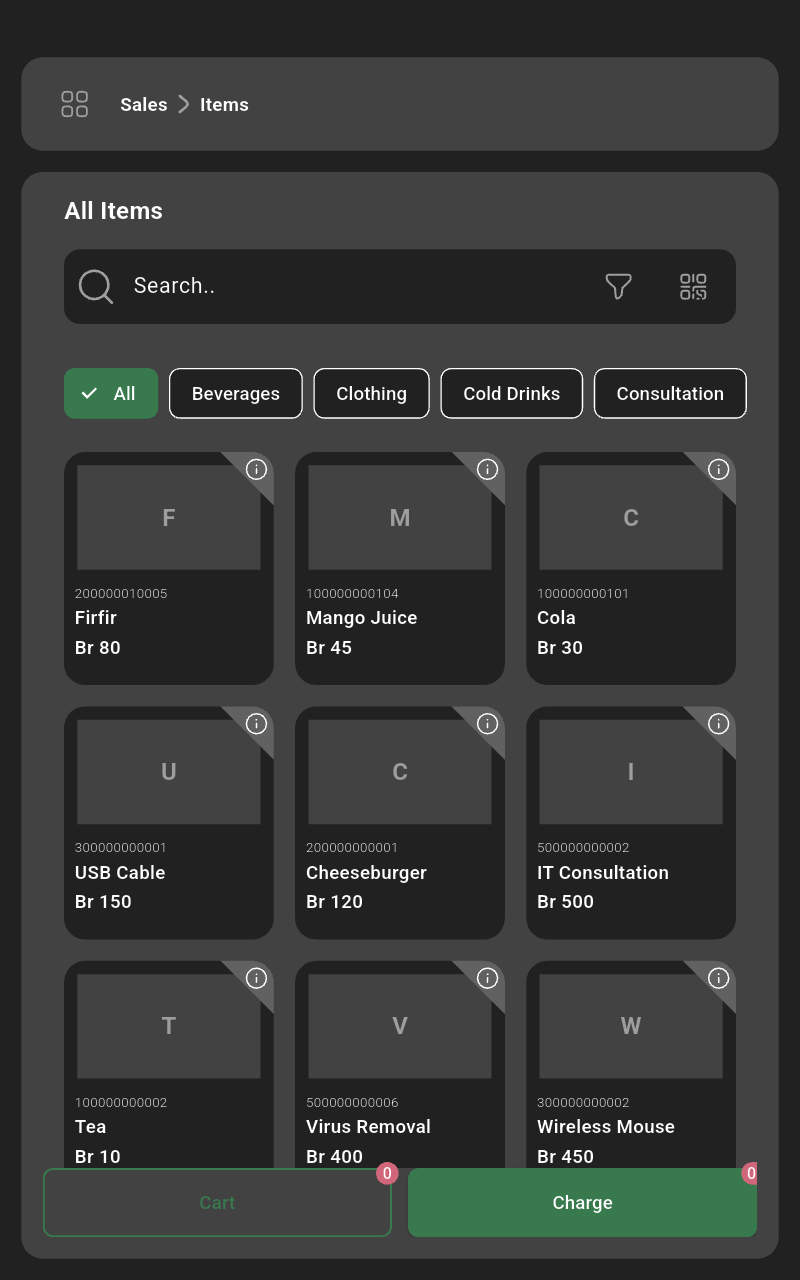 | Open the side menu from the top-left icon. |
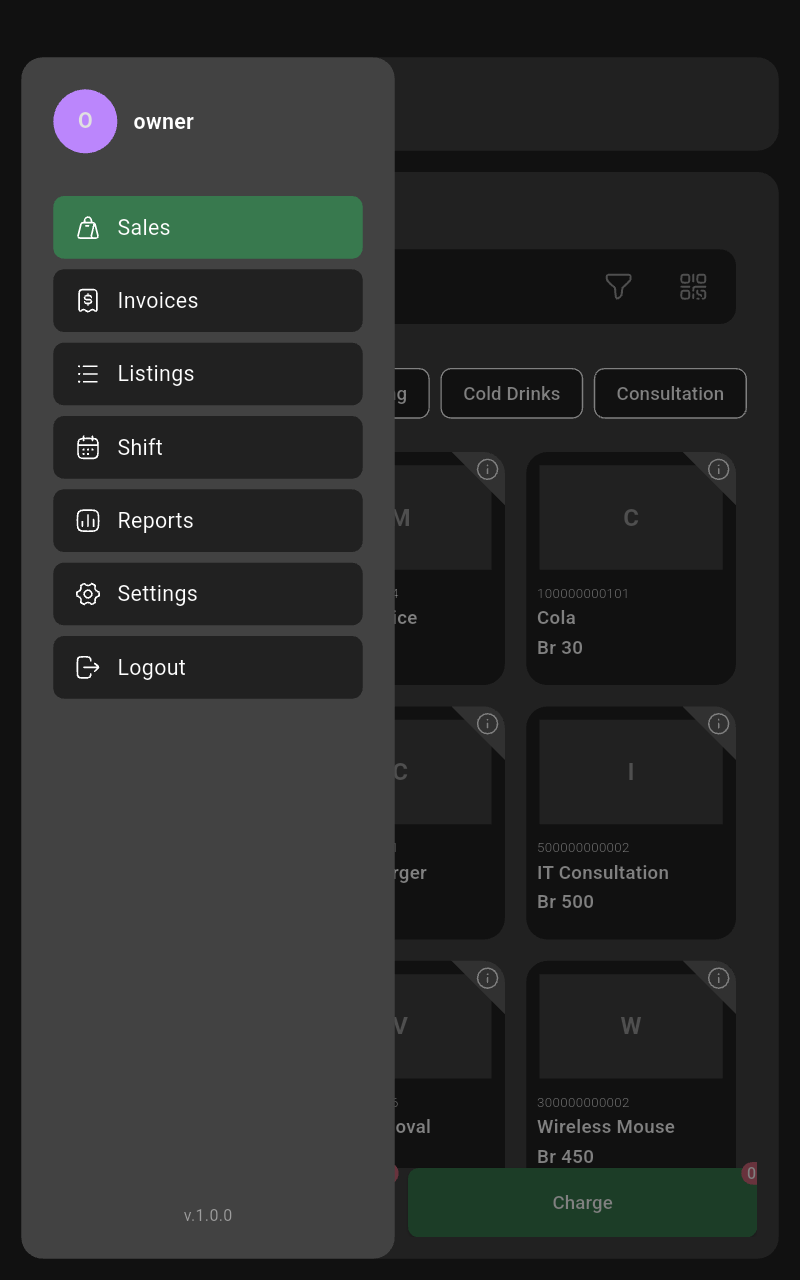 | Tap the Settings button. |
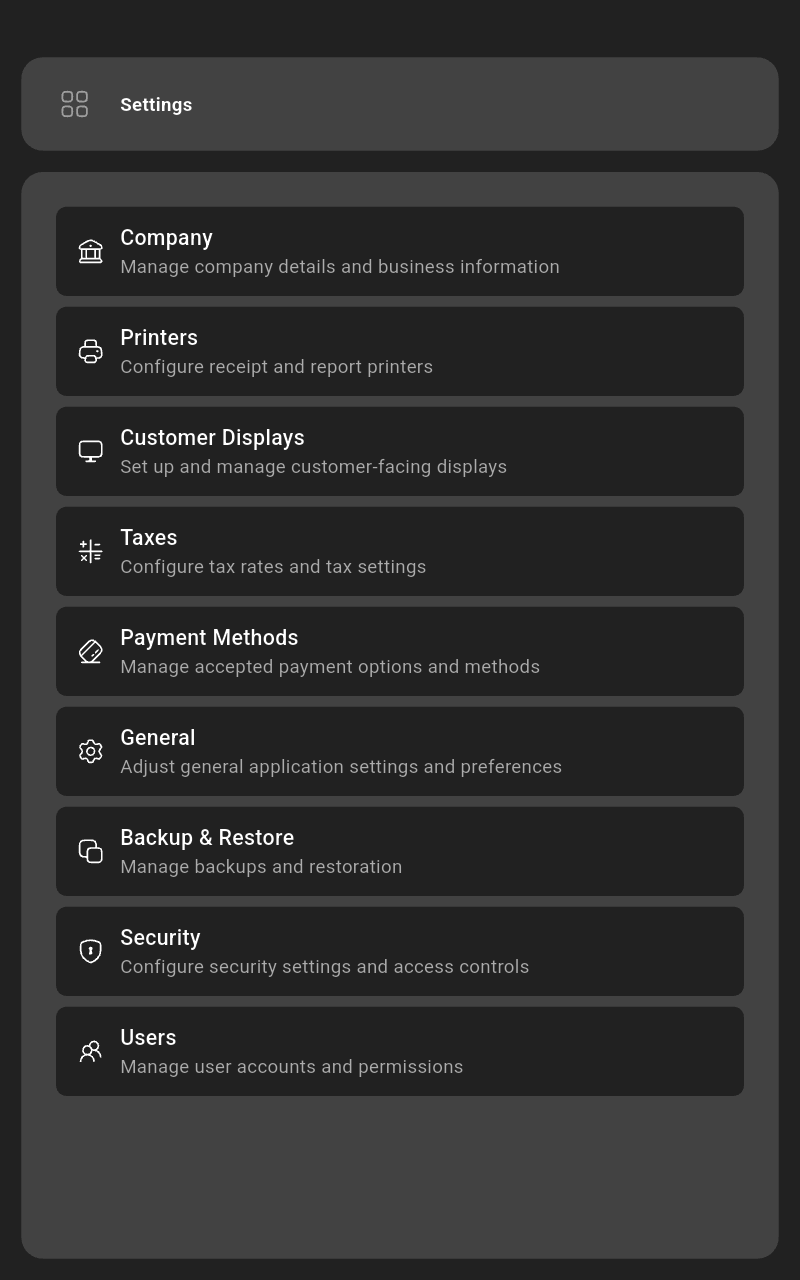 | Select the Company option. |
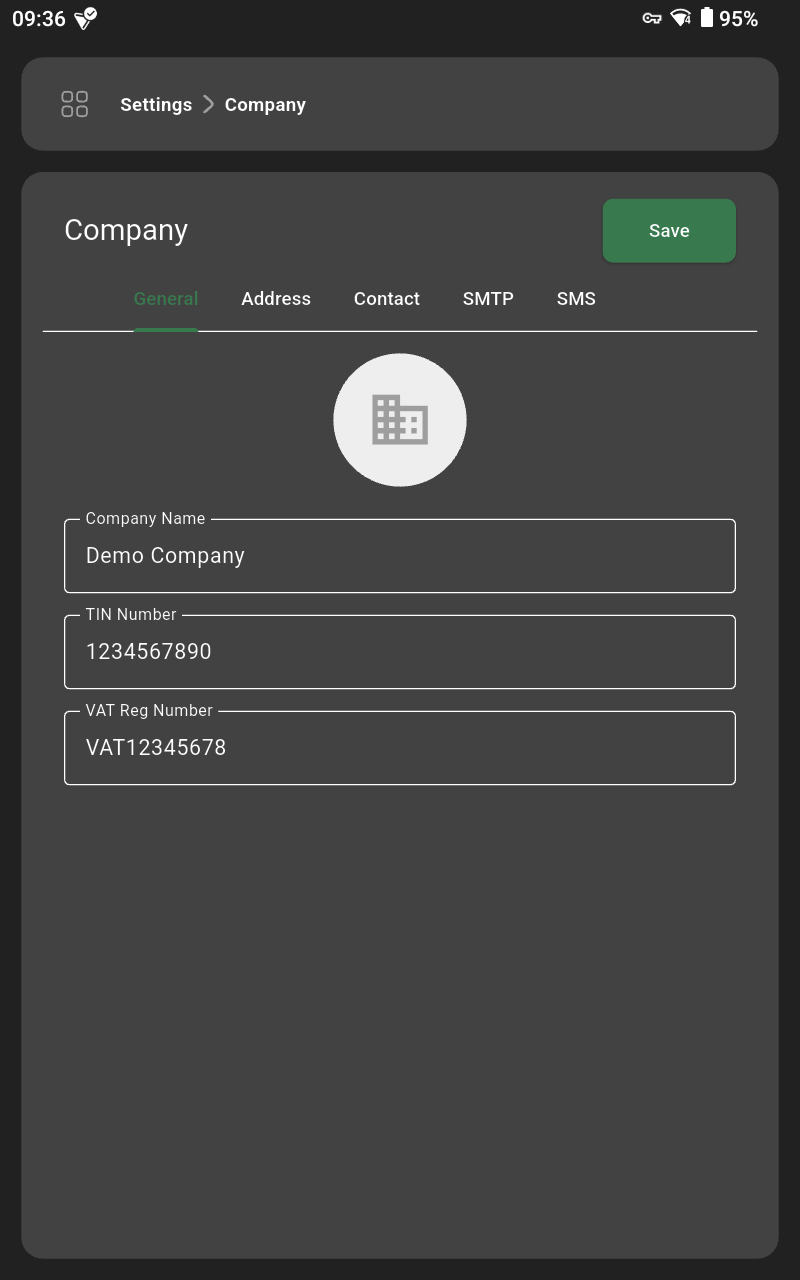 | Update company name, contacts, addresses, and tax IDs, then tap Save. |
Taxes
List of Taxes
| Open the side menu from the top-left icon. |
| Tap the Settings button. |
| Select the Taxes option. |
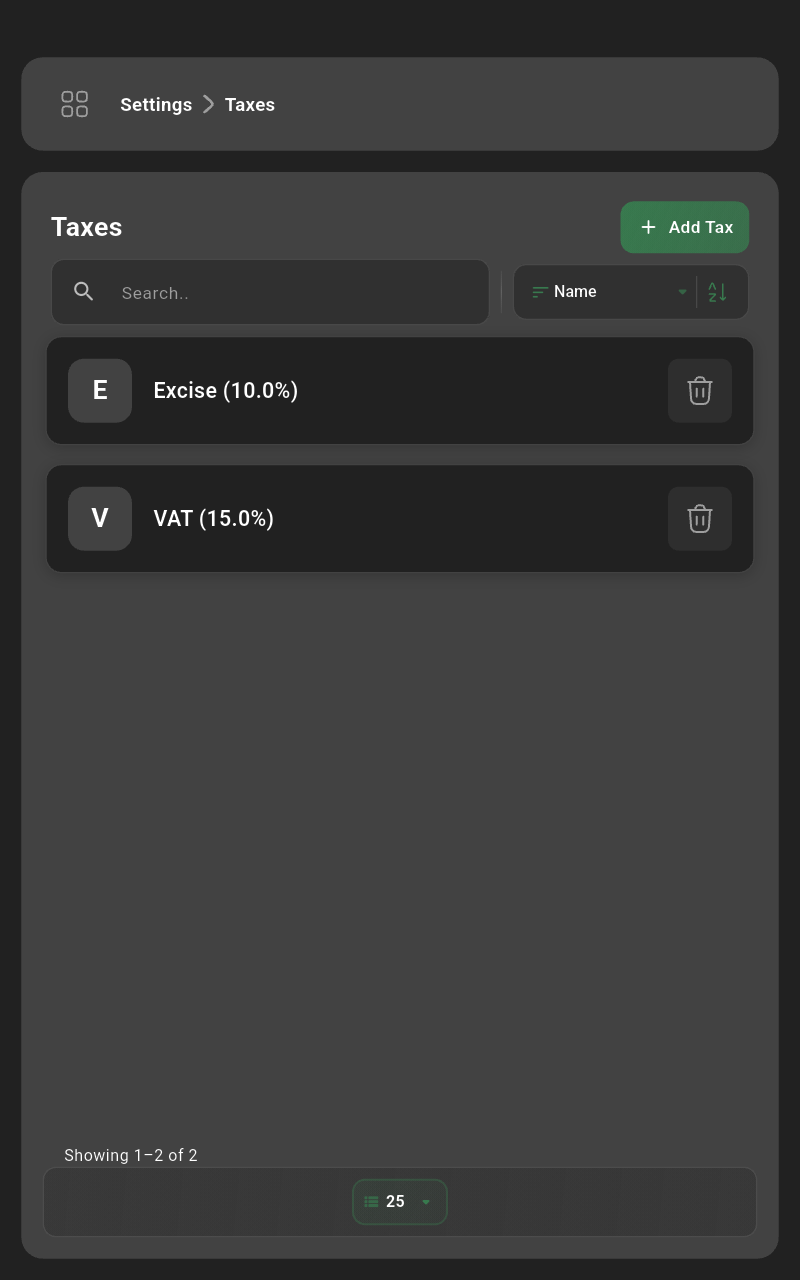 | Review existing taxes, search, or add a new one. |
Add Tax
| Tap the Add Tax button. |
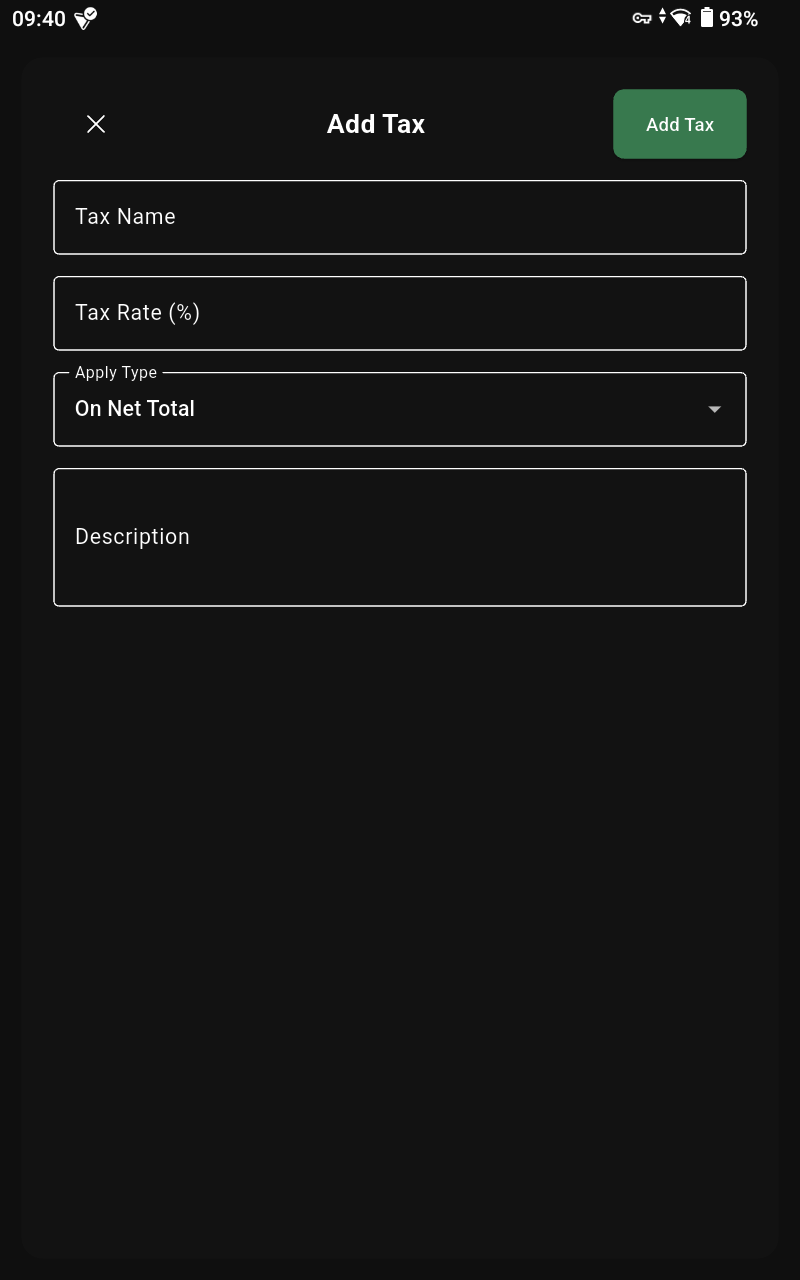 | Enter the tax name, rate, and whether it is inclusive; tap Add Tax to save. |
Edit Tax
| Select the tax you want to change. |
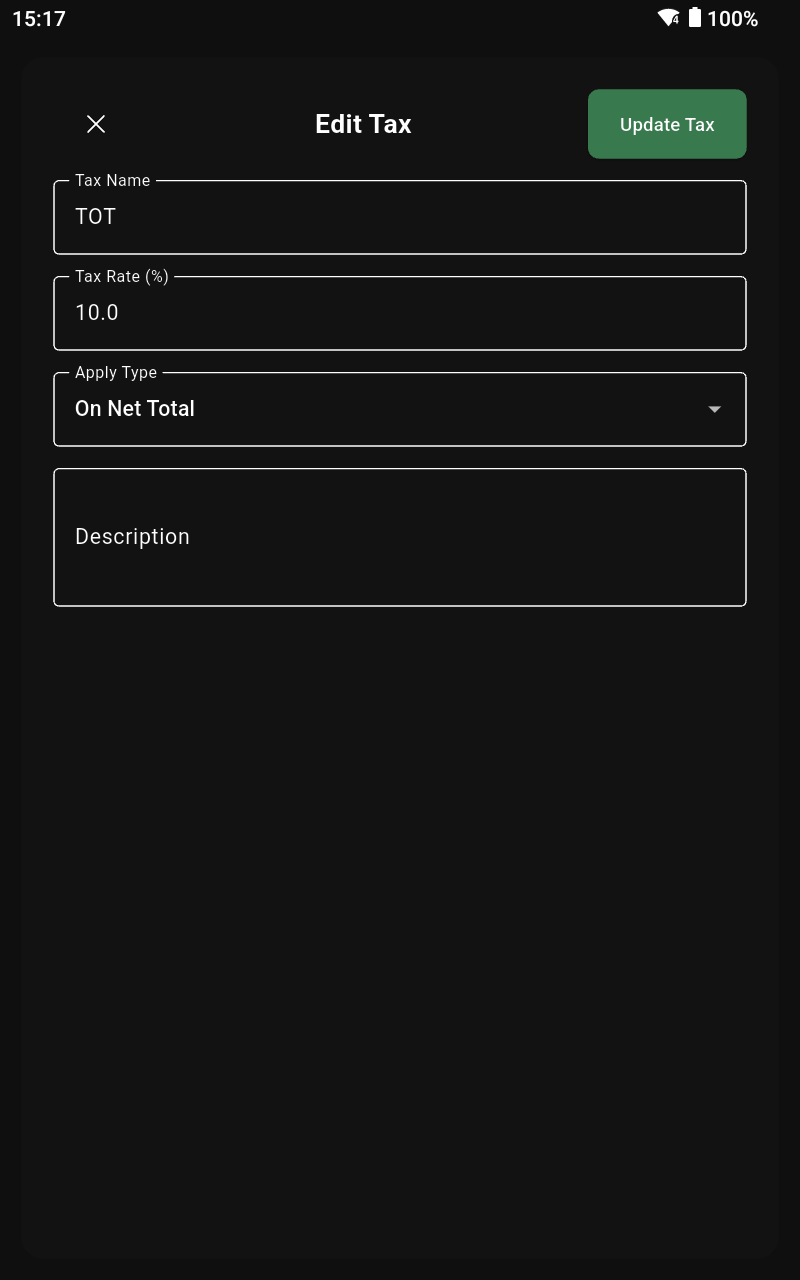 | Edit the fields and tap Update Tax. |
Delete Tax
| Tap the trash icon on the tax you want to remove. |
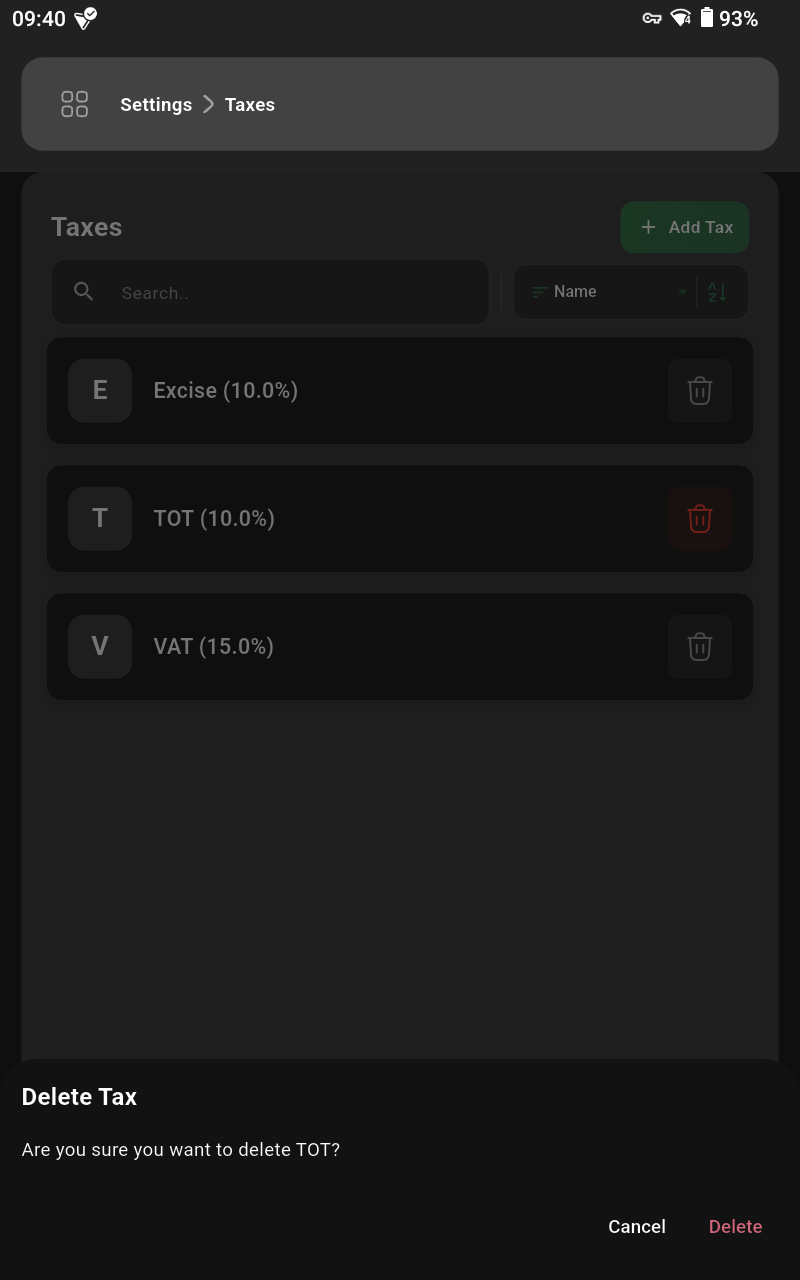 | Confirm by tapping Delete. |
Payment Methods
List of Payment Methods
| Open the side menu from the top-left icon. |
| Tap the Settings button. |
| Select the Payment Methods option. |
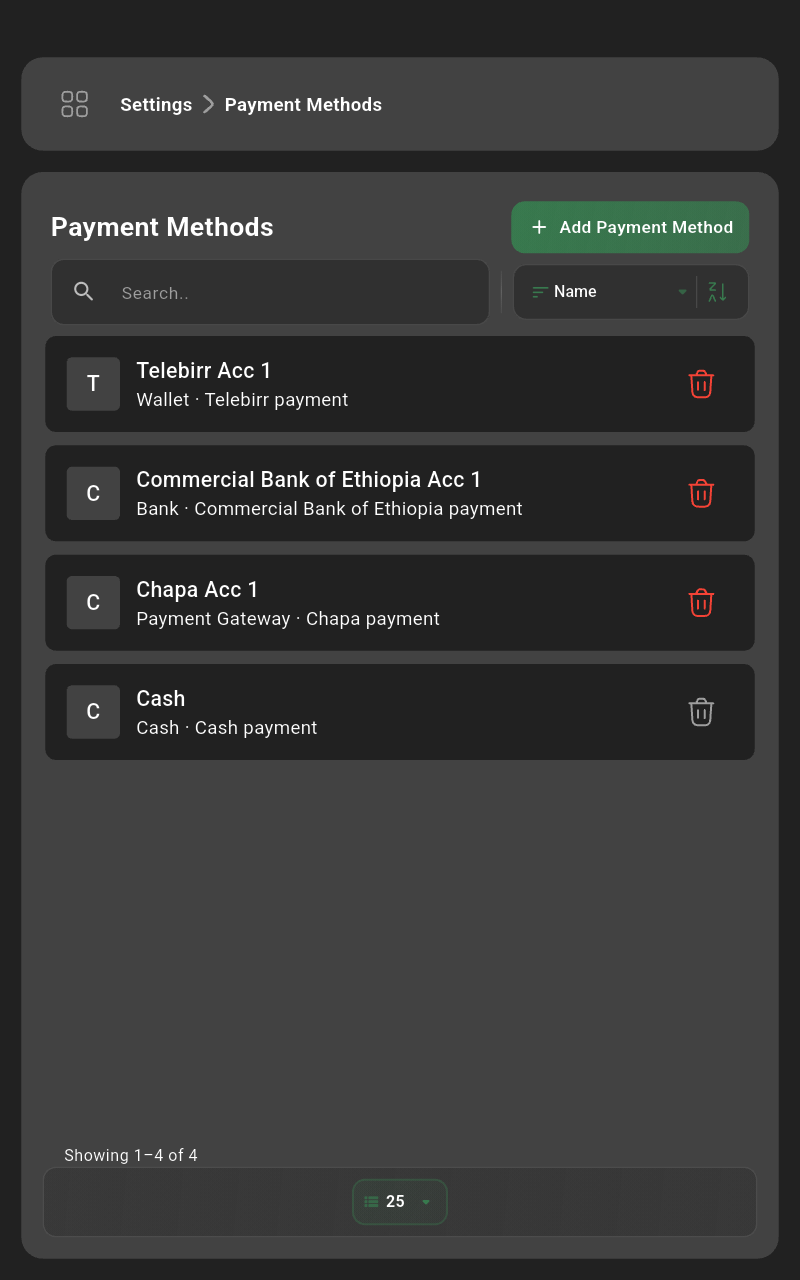 | Review available payment methods or add a new one. |
Add Payment Method
| Tap the Add Payment Method button. |
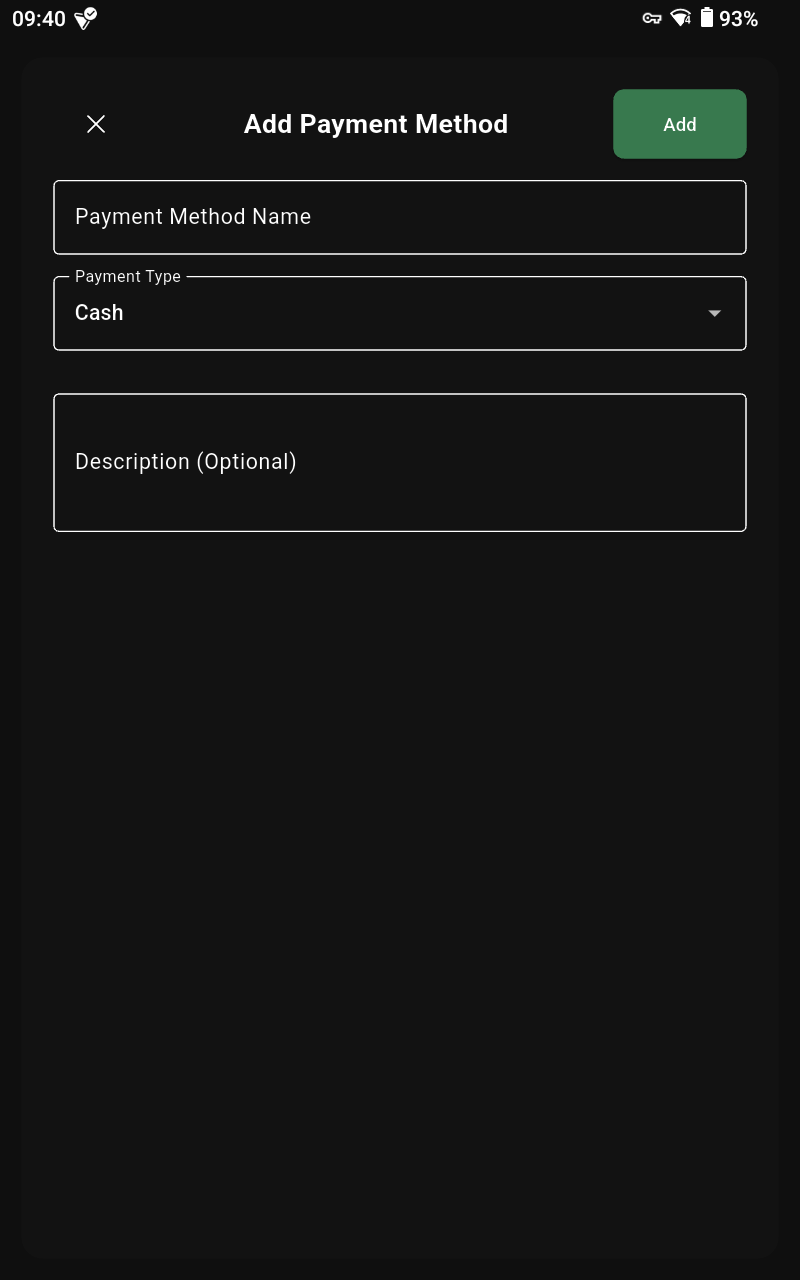 | Enter the payment name and type (cash, card, mobile, bank) and tap Add. |
Edit Payment Method
| Select the payment method you want to update. |
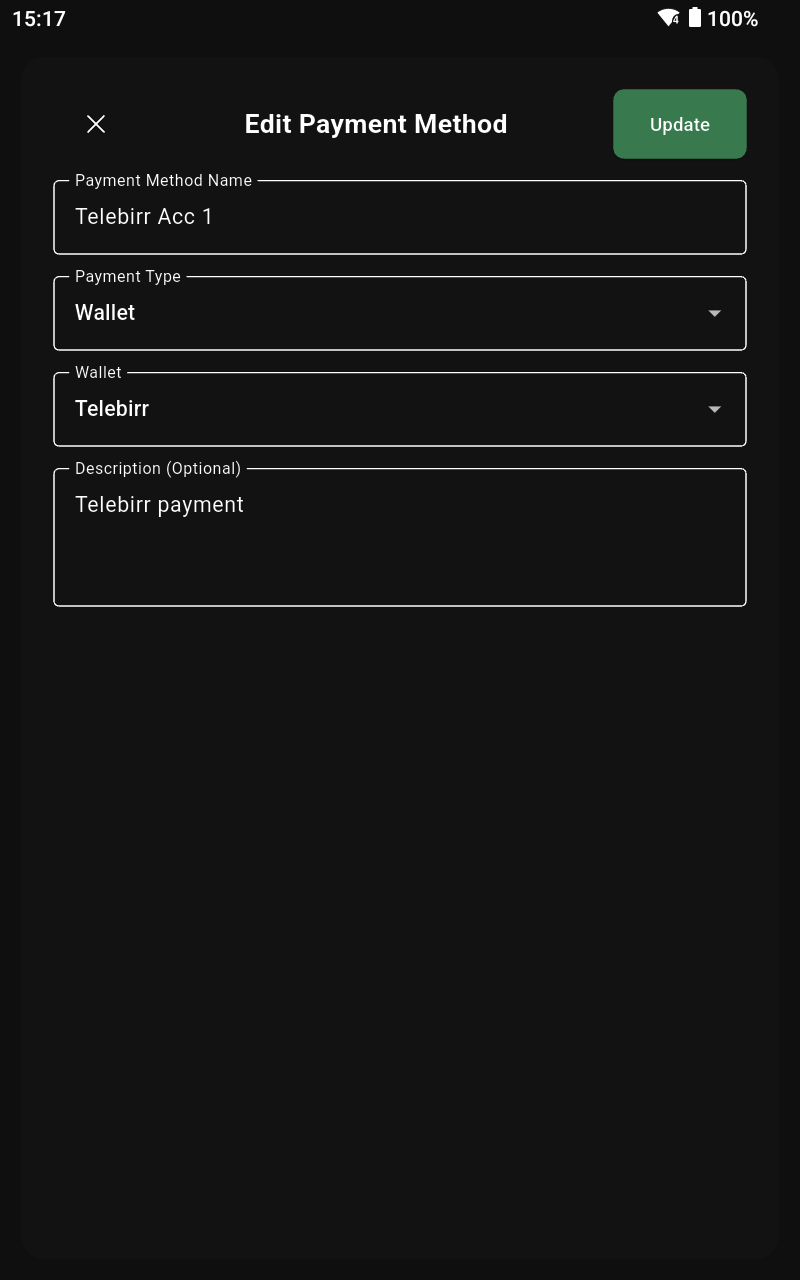 | Change the details and tap Update. |
Delete Payment Method
| Tap the trash icon for the payment method you want to delete. |
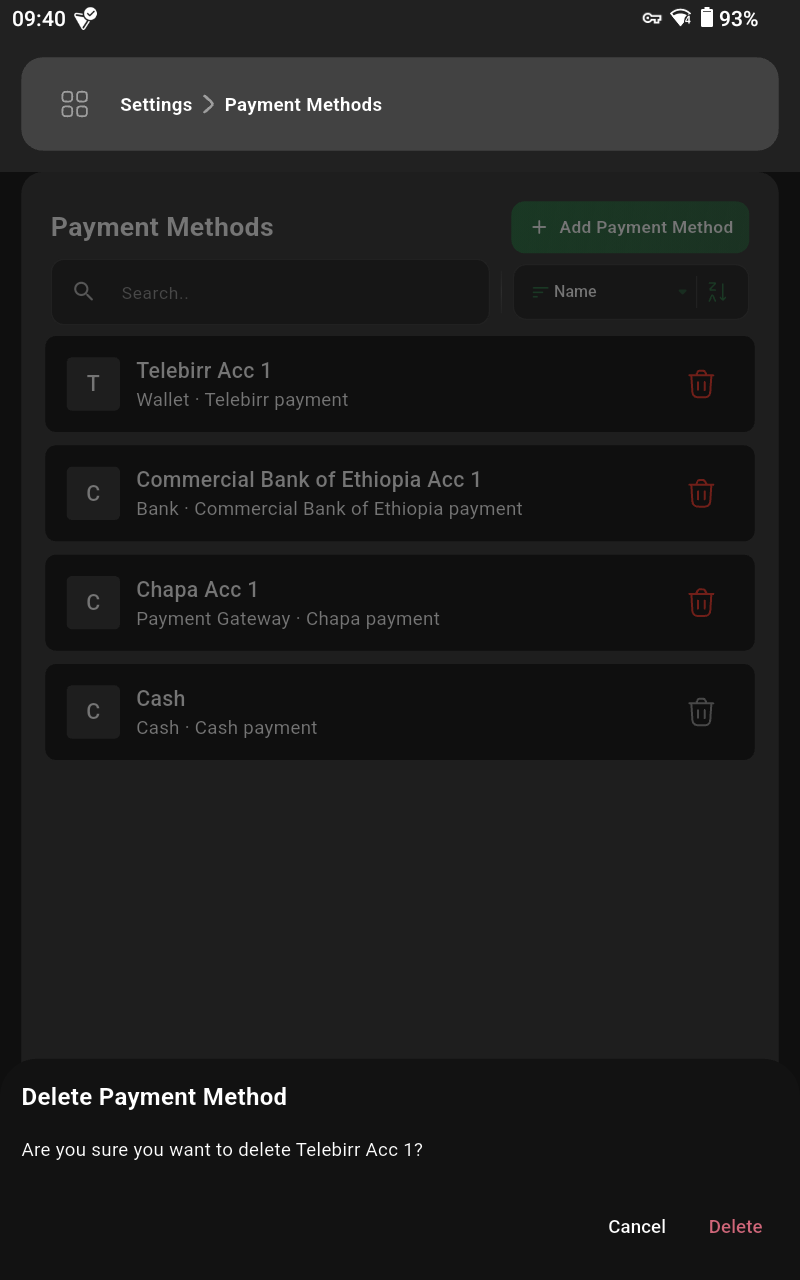 | Confirm by tapping Delete. |
Categories
List of Categories
| Open the side menu from the top-left icon. |
| Tap the Listings button. |
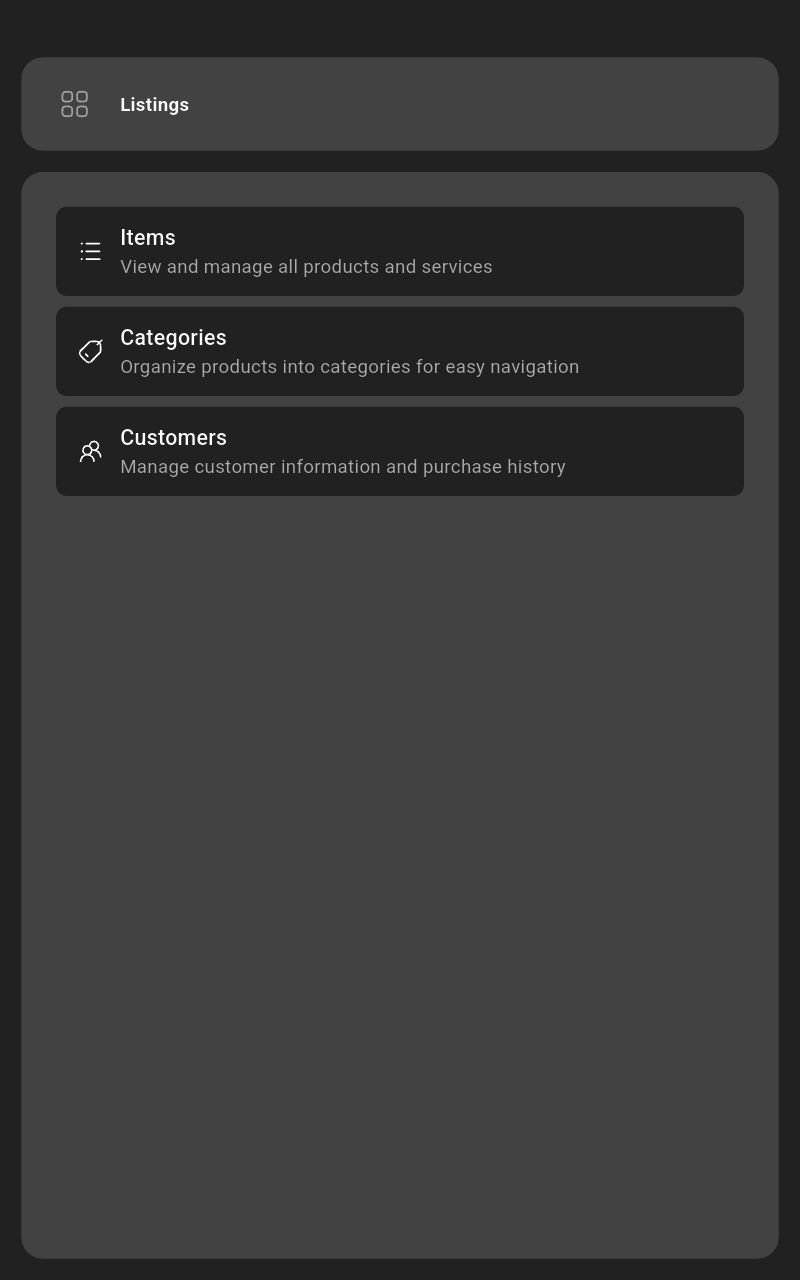 | Select the Categories option. |
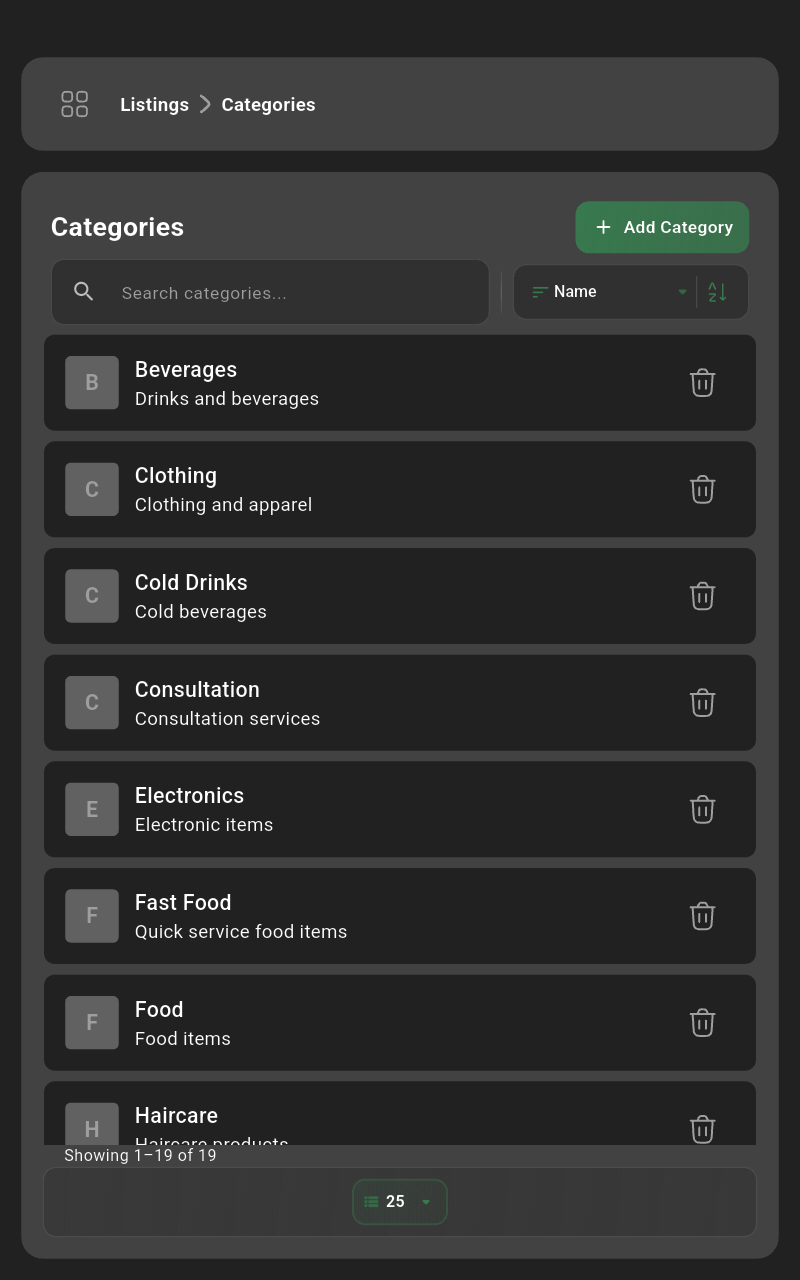 | Browse existing categories or add a new one. |
Add Category
| Tap the Add Category button. |
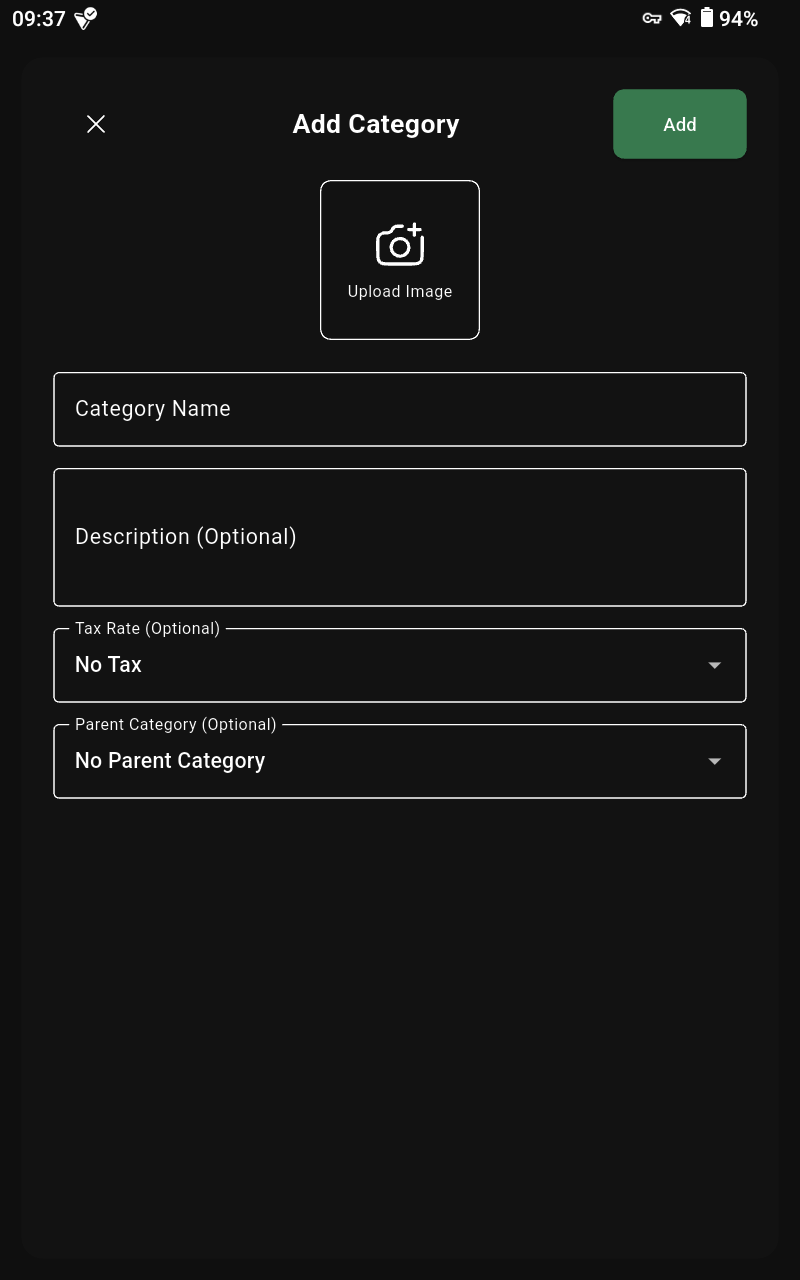 | Enter the category name and any code/description, then tap Add. |
Edit Category
| Select the category you want to update. |
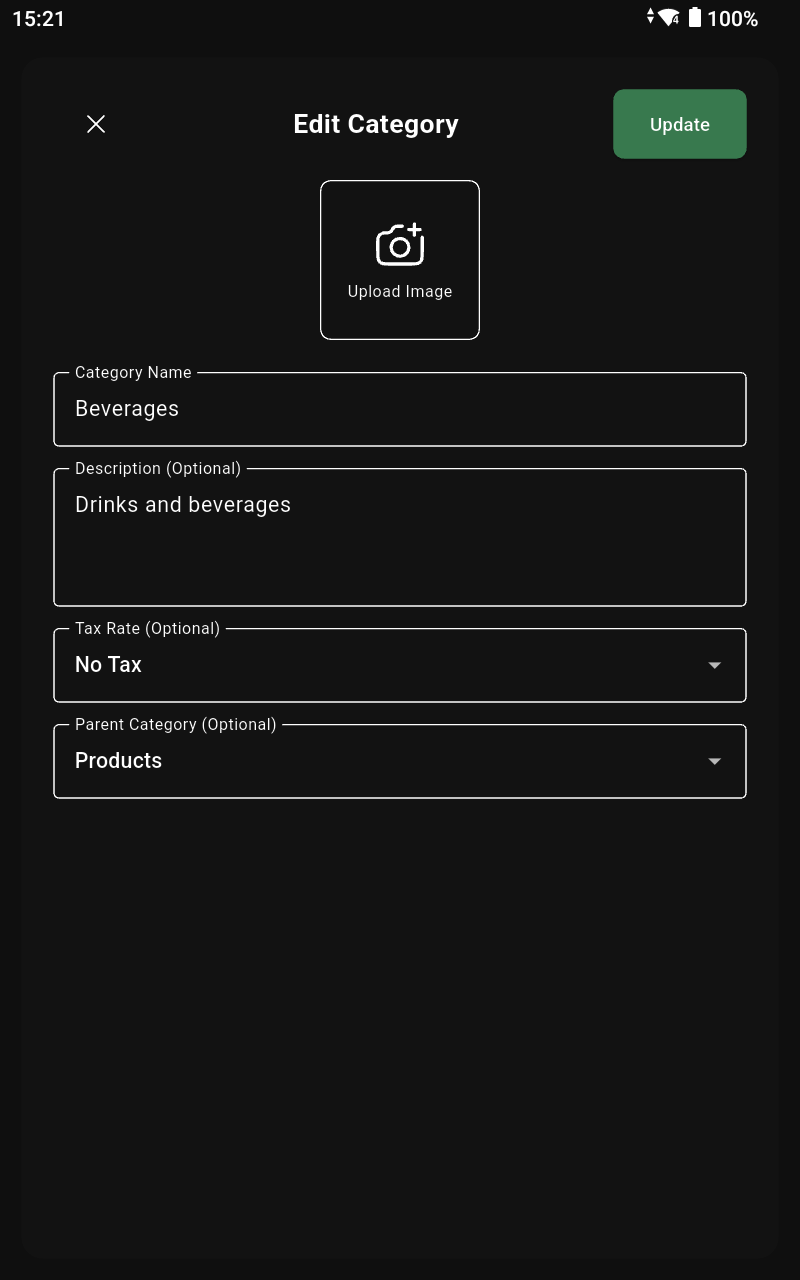 | Edit the fields and tap Update. |
Delete Category
| Tap the trash icon for the category you want to remove. |
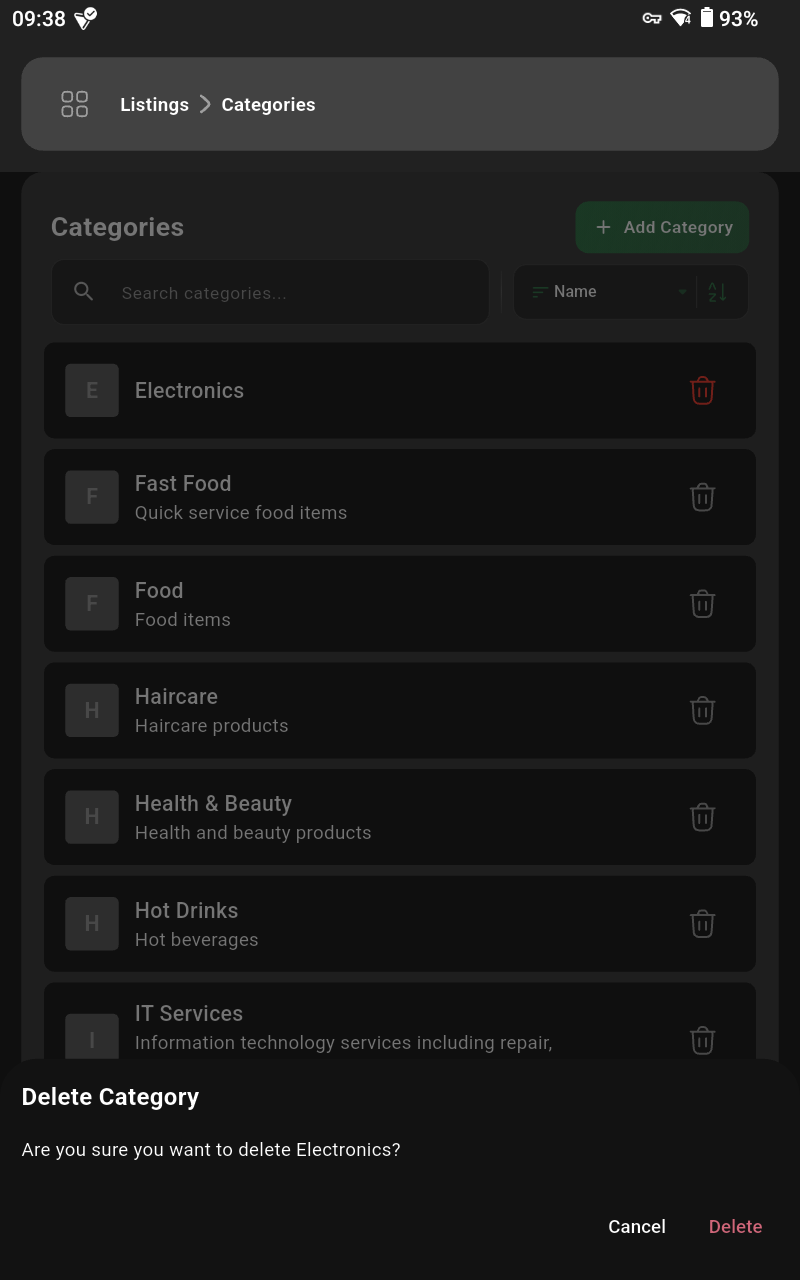 | Confirm by tapping Delete. |
Items
List of Items
| Open the side menu from the top-left icon. |
| Tap the Listings button. |
| Select the Items option. |
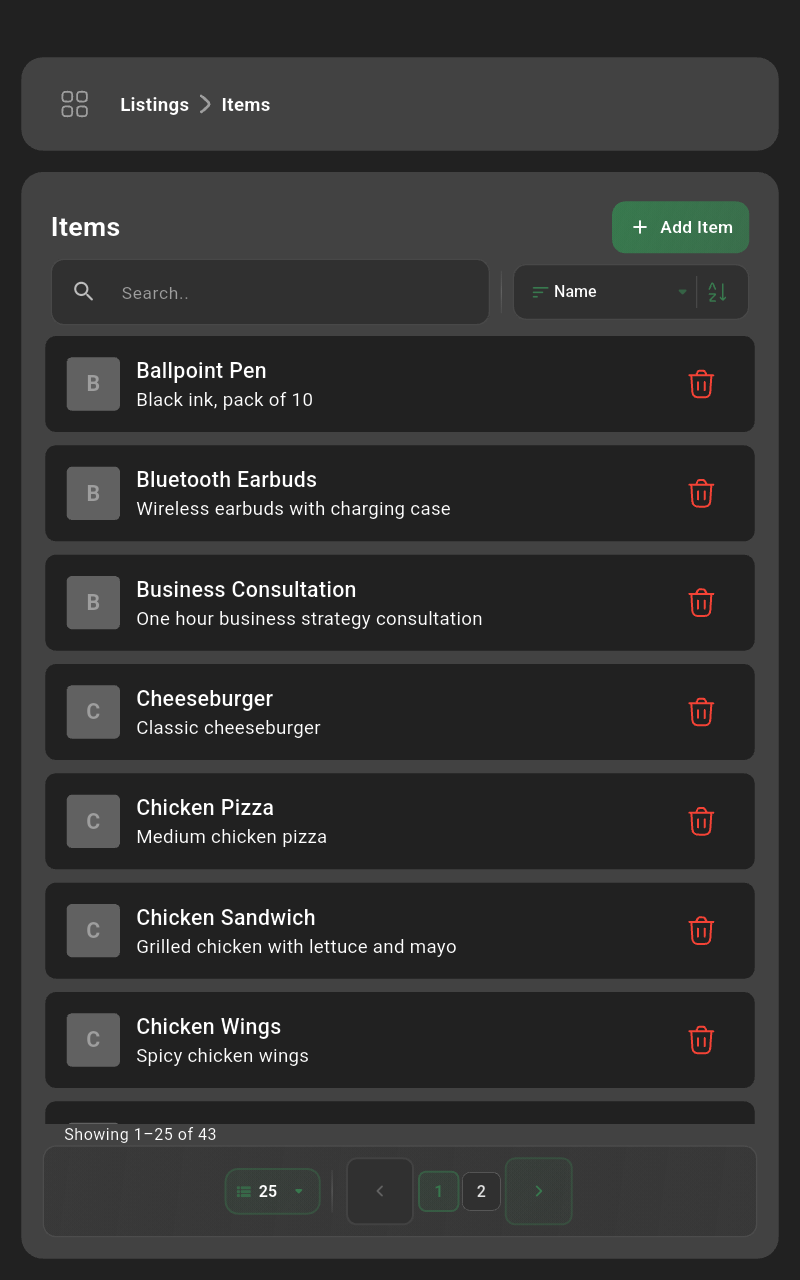 | Search, filter, and manage your items. |
Add Item
| Tap the Add Item button. |
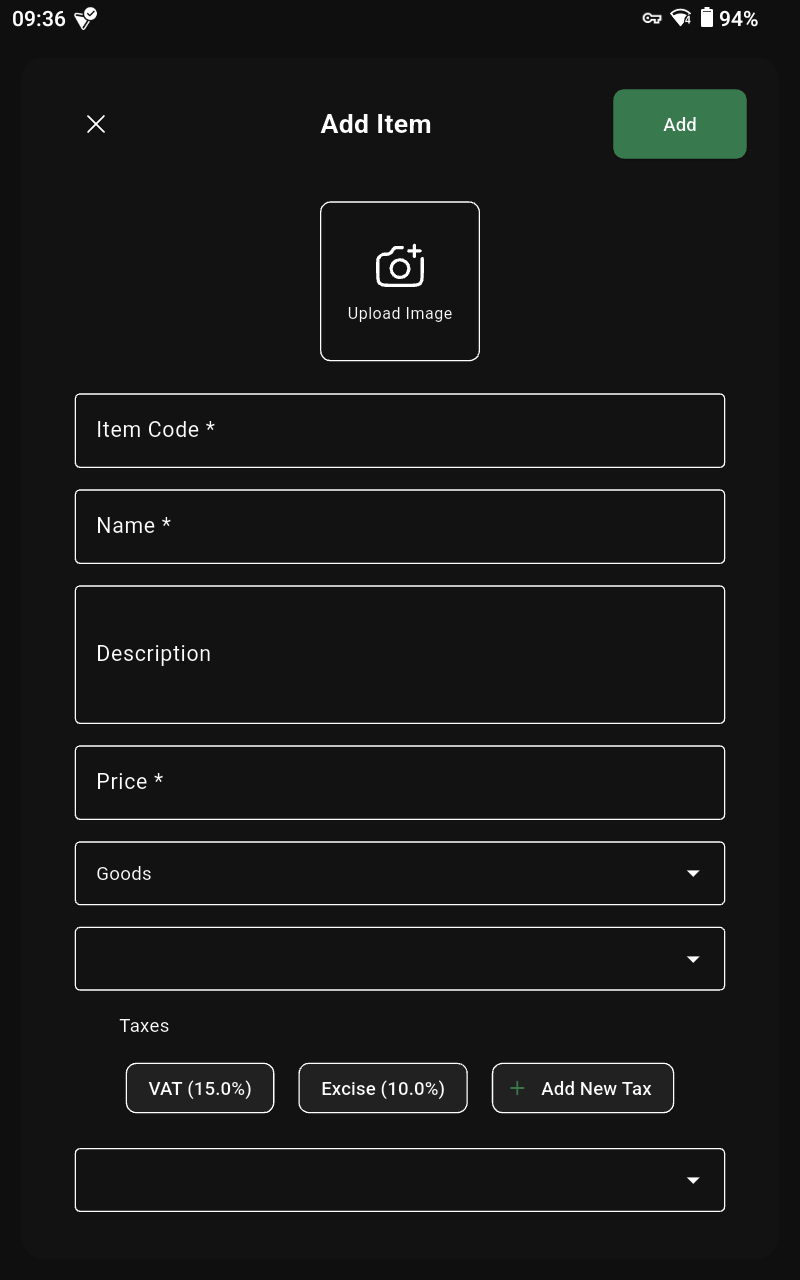 | Enter name, category, price, tax, and stock details, then tap Add. |
Edit Item
| Select the item you want to edit. |
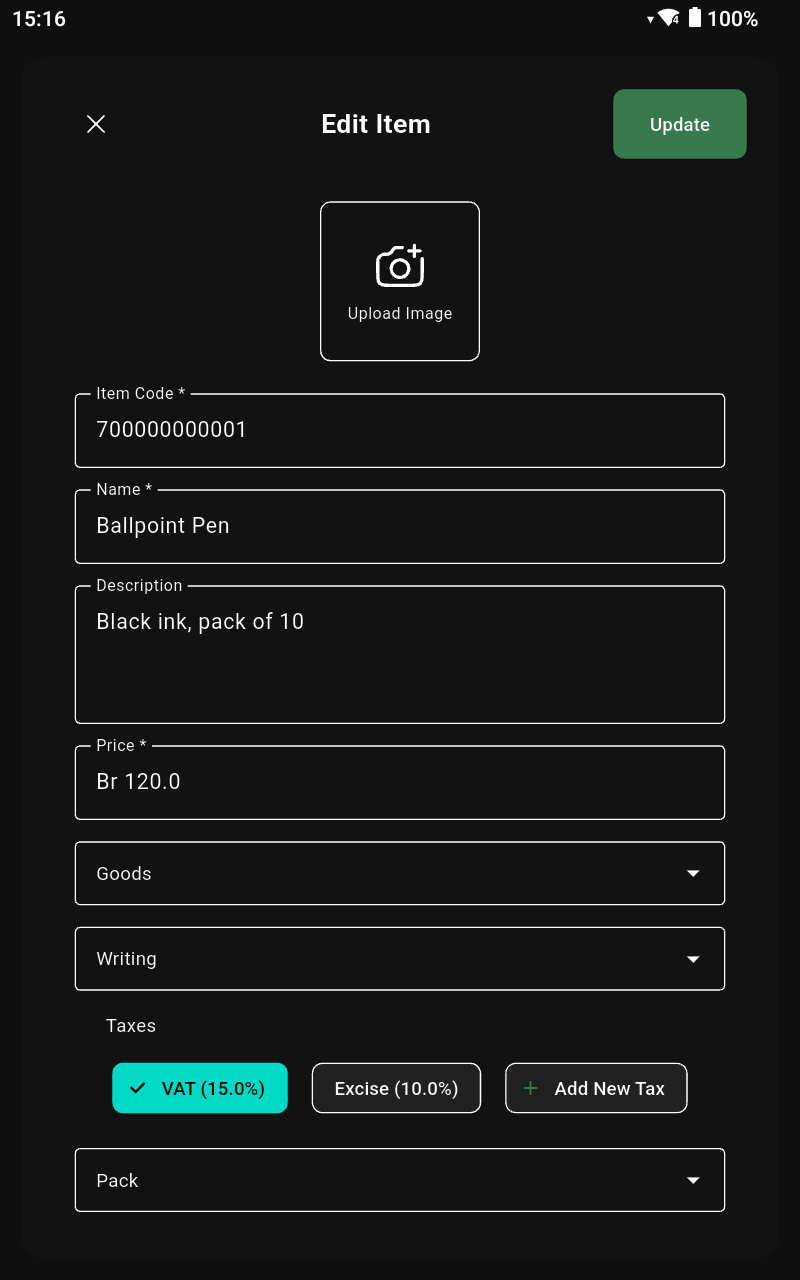 | Update pricing, stock, or descriptions, then tap Update. |
Delete Item
| Tap the trash icon for the item you want to remove. |
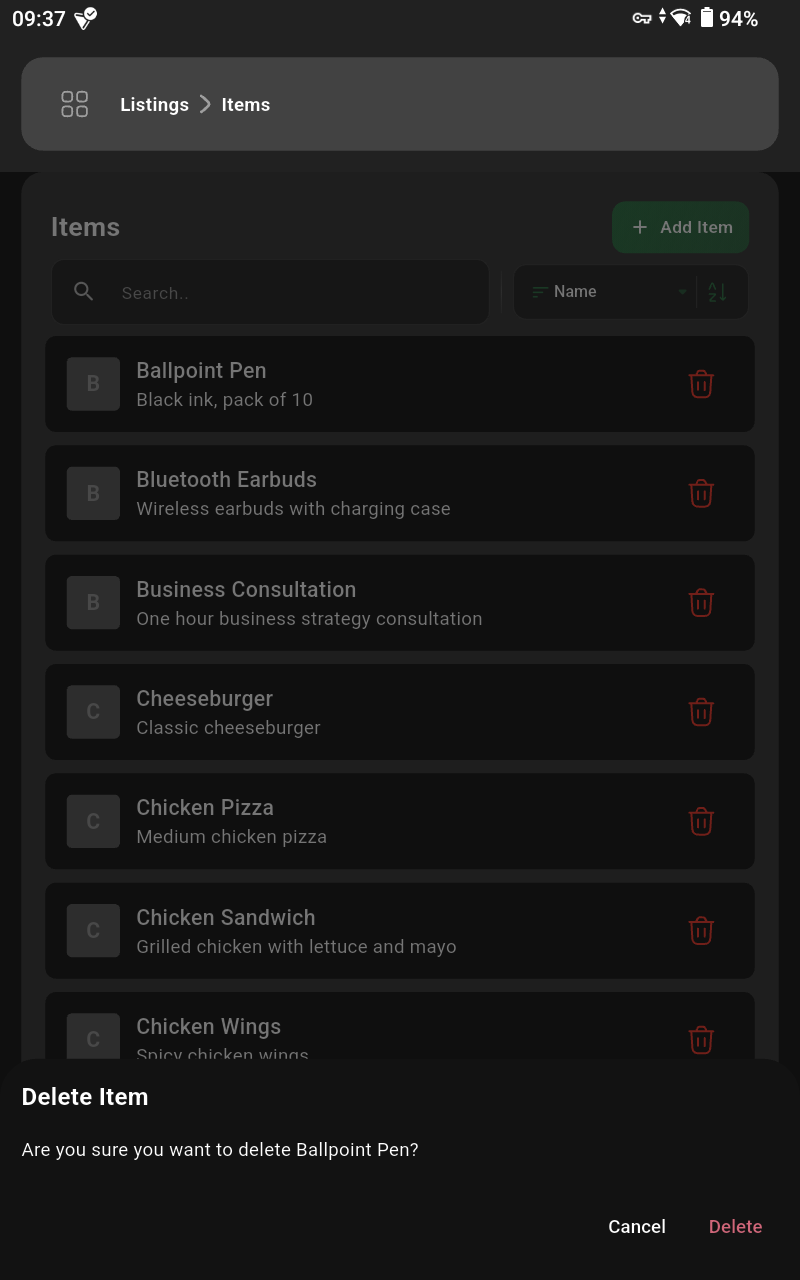 | Confirm by tapping Delete. |
Customers
List of Customers
| Open the side menu from the top-left icon. |
| Tap the Listings button. |
| Select the Customers option. |
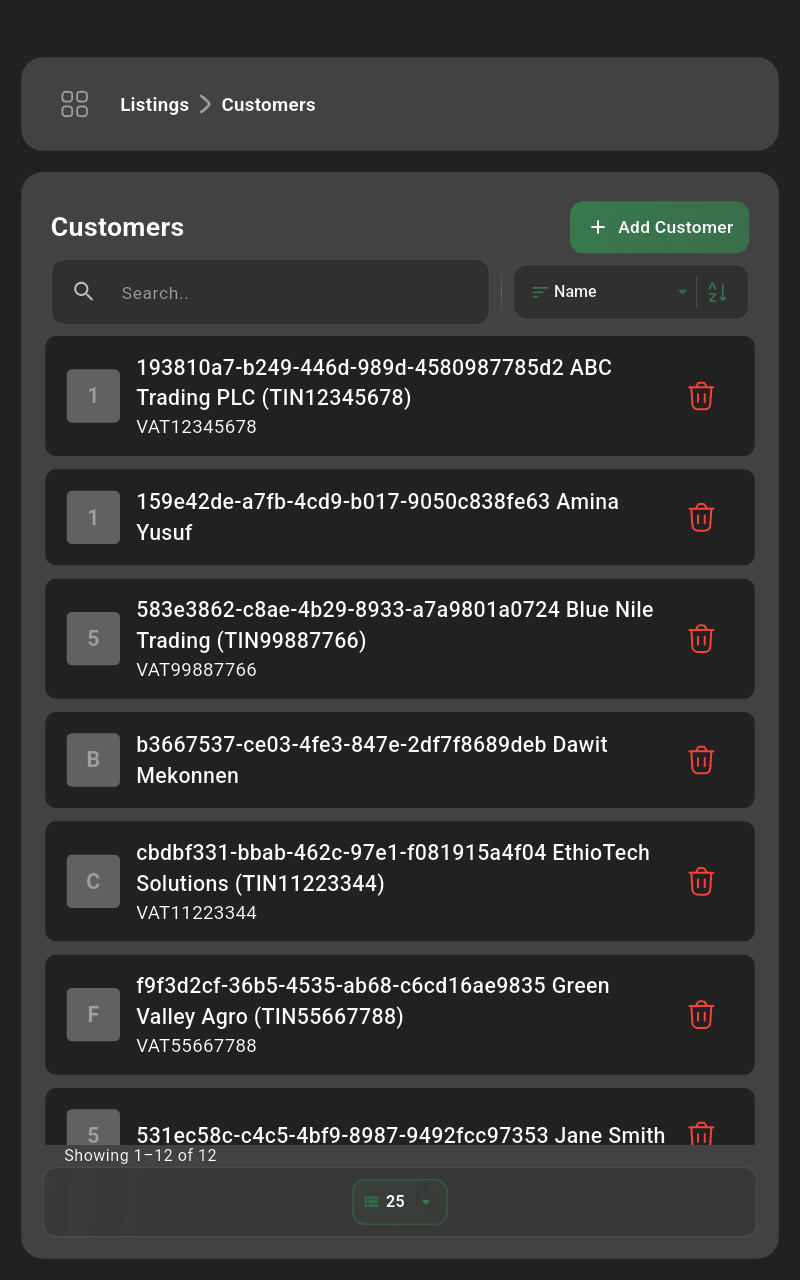 | Search for existing customers or add a new profile. |
Add Customer
| Tap the Add Customer button. |
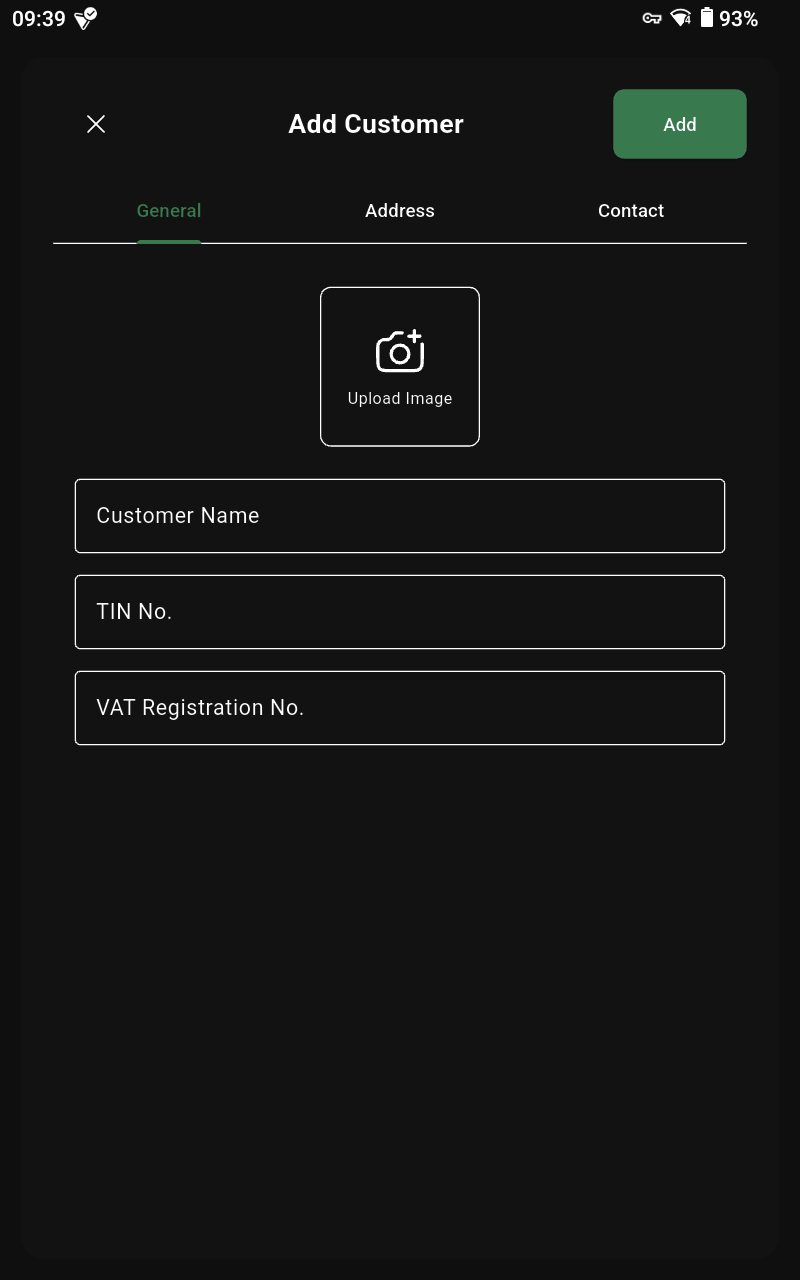 | Enter name, contact details, and optional tax info, then tap Add. |
Edit Customer
| Select the customer you want to update. |
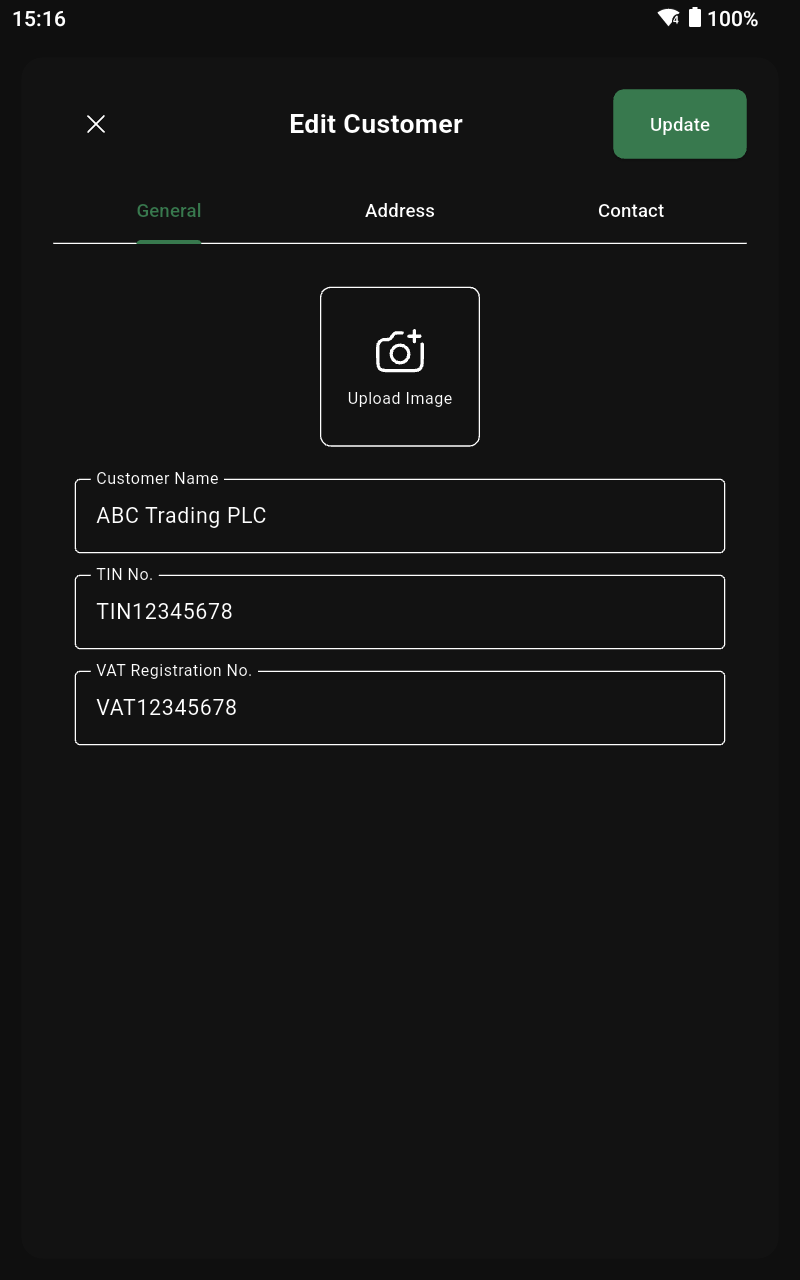 | Edit the details and tap Update. |
Delete Customer
| Tap the trash icon for the customer you want to remove. |
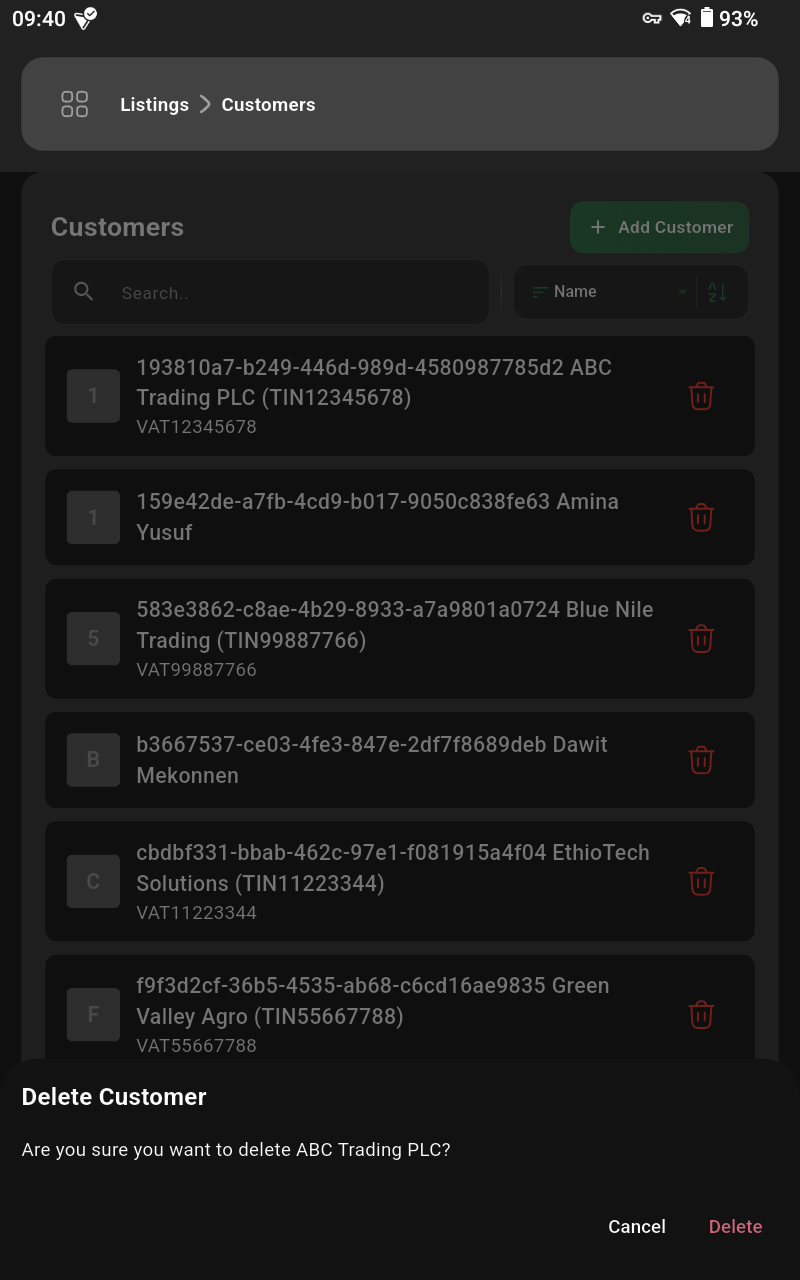 | Confirm by tapping Delete. |
Users
List of Users
| Open the side menu from the top-left icon. |
| Tap the Settings button. |
| Select the Users option. |
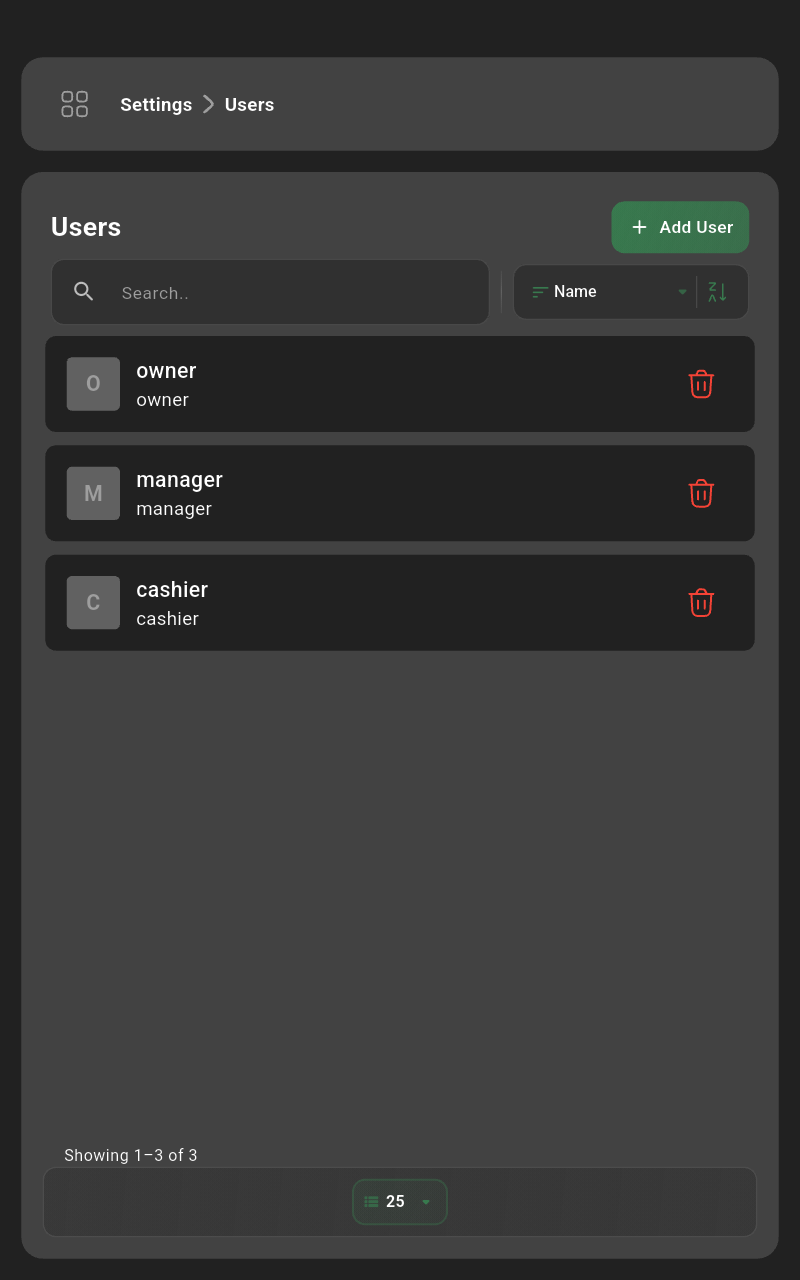 | Review POS users, their roles, and statuses. |
Add User
| Tap the Add User button. |
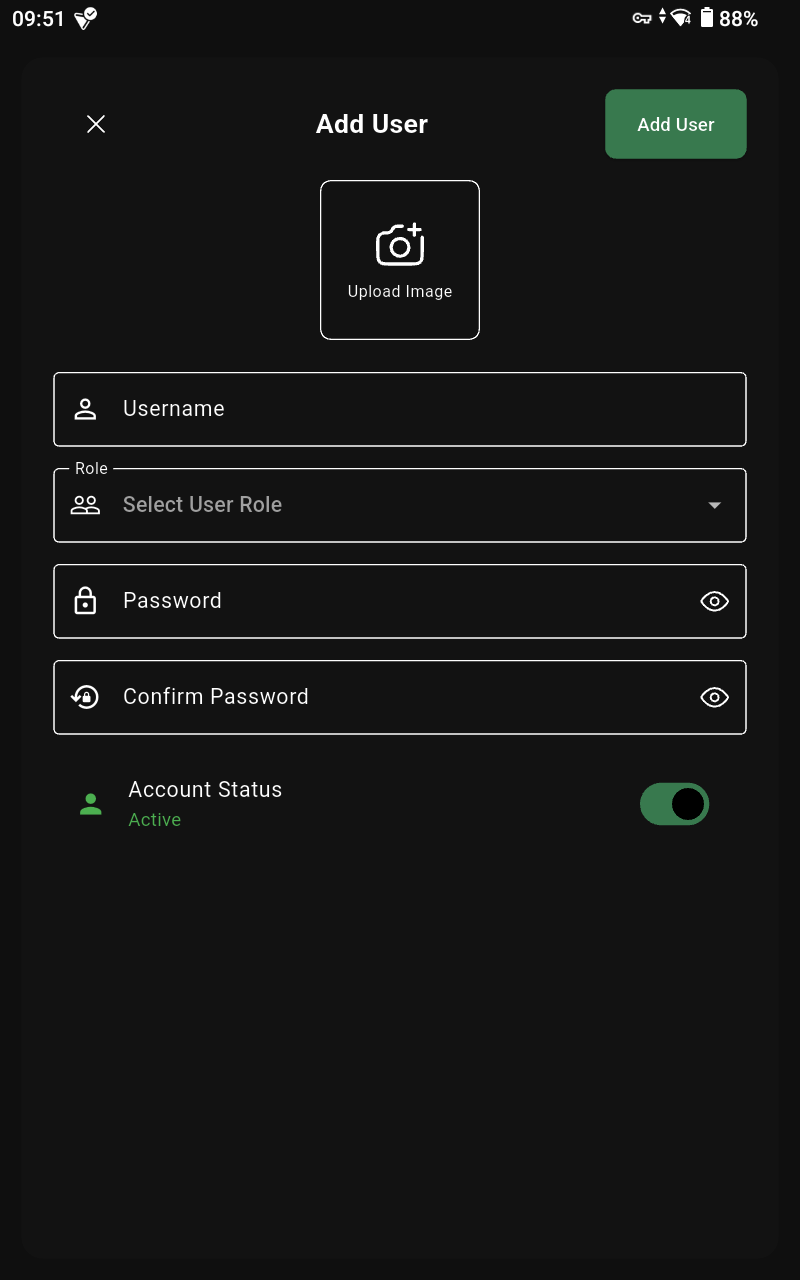 | Enter name, role/permissions, and credentials, then tap Add. |
Edit User
| Select the user you want to update. |
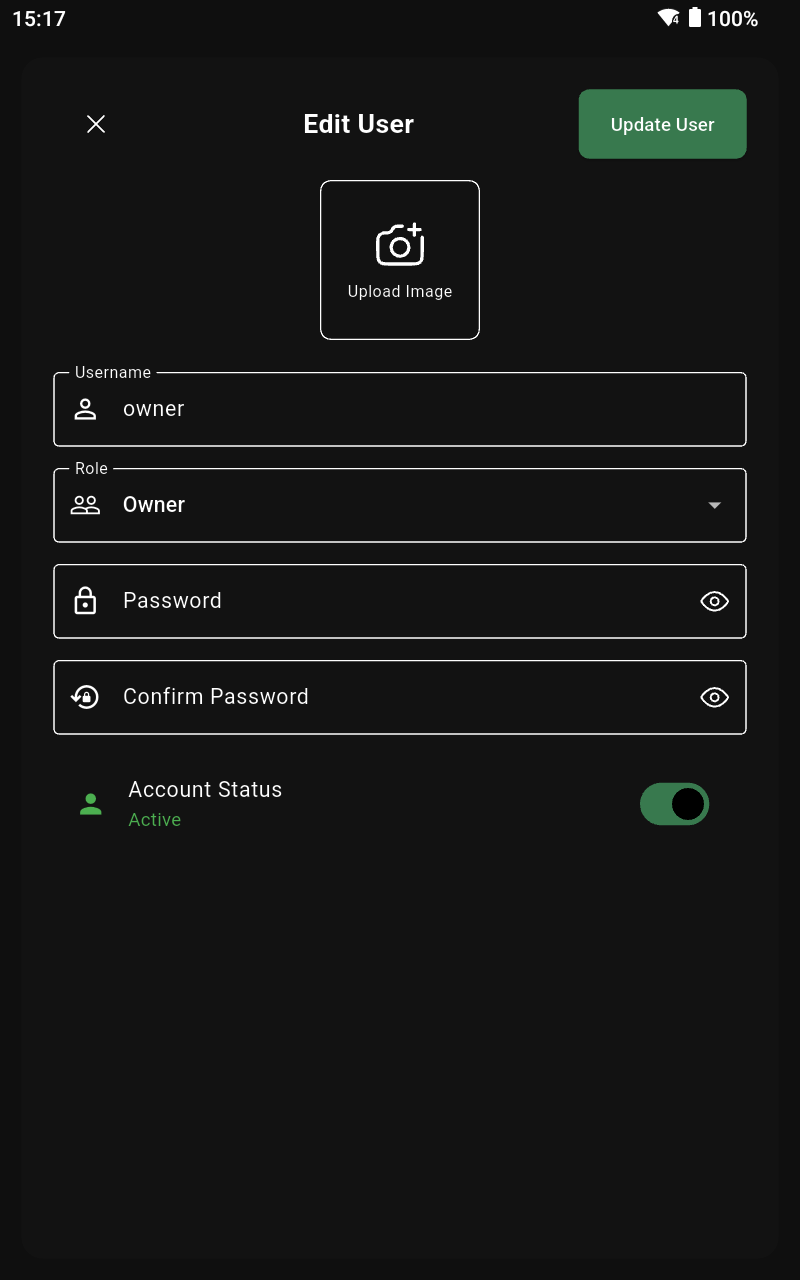 | Adjust role, contact info, or reset the password, then tap Update. |
Delete User
| Tap the trash icon for the user you want to remove. |
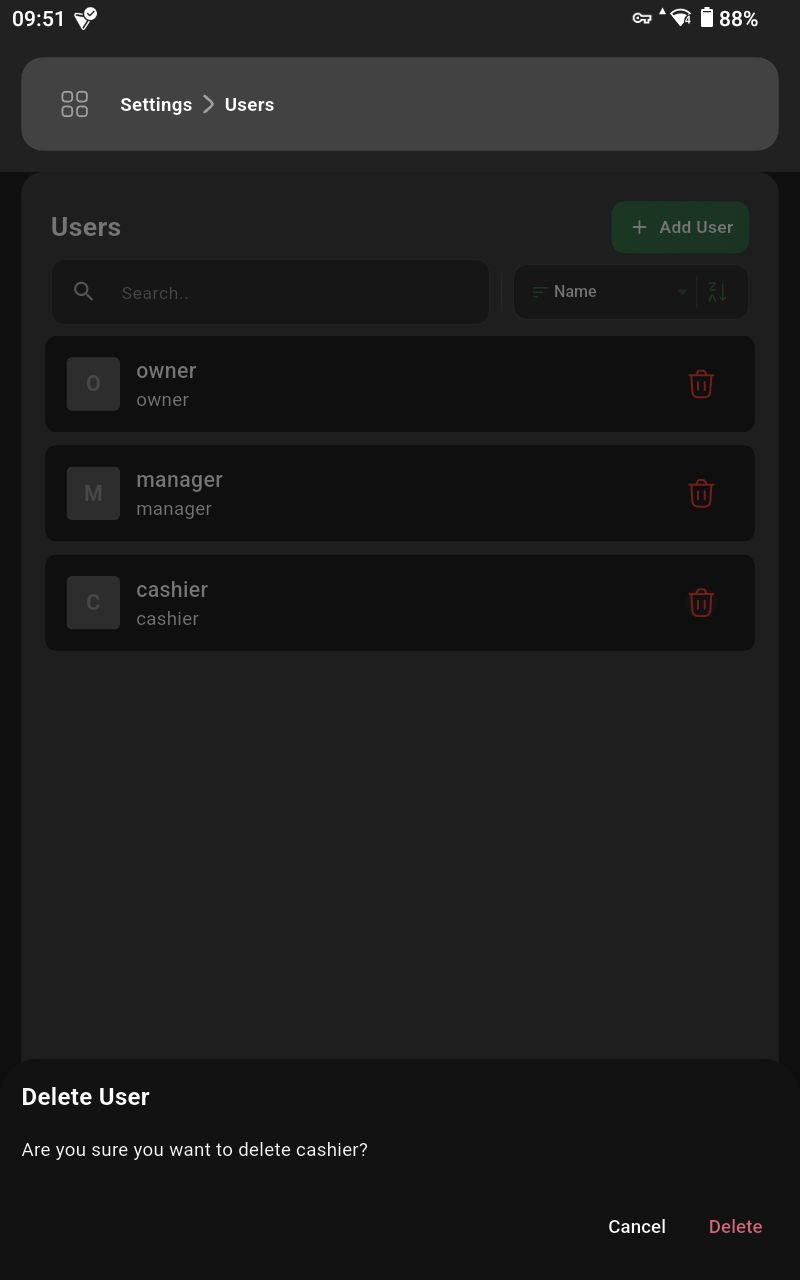 | Confirm by tapping Delete. |
Printers
List of Printers
| Open the side menu from the top-left icon. |
| Tap the Settings button. |
| Select the Printers option. |
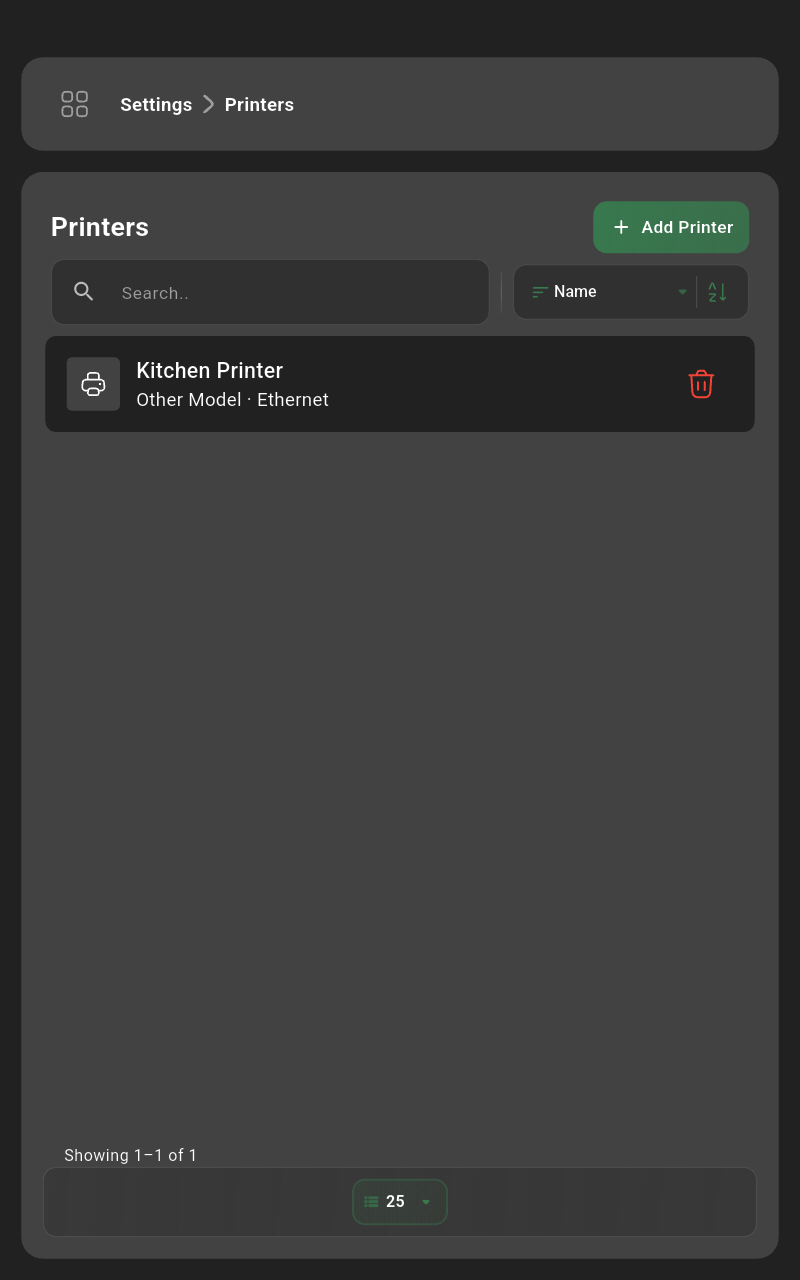 | View connected printers or add a new one. |
Add Printer
| Tap the Add Printer button. |
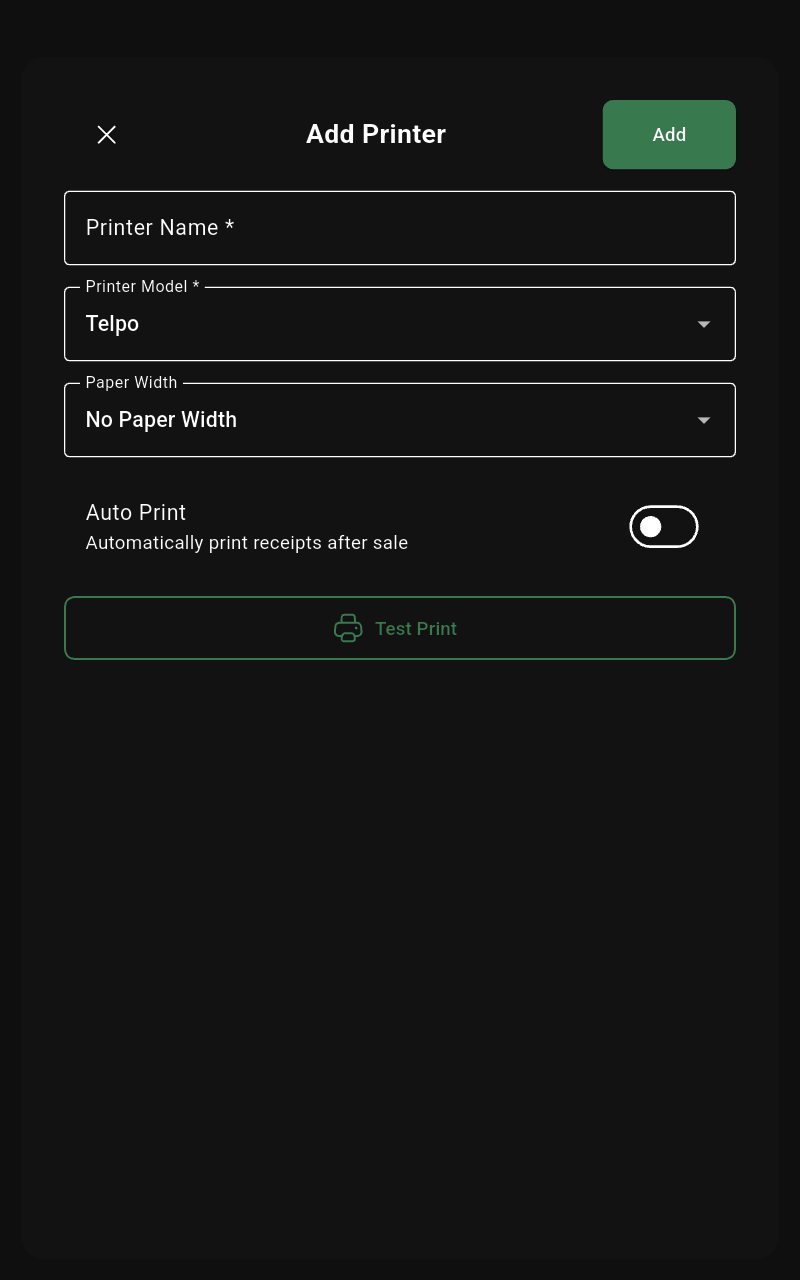 | Enter printer name, connection (IP/Bluetooth), and paper width, then tap Add. |
Edit Printer
| Select the printer you want to update. |
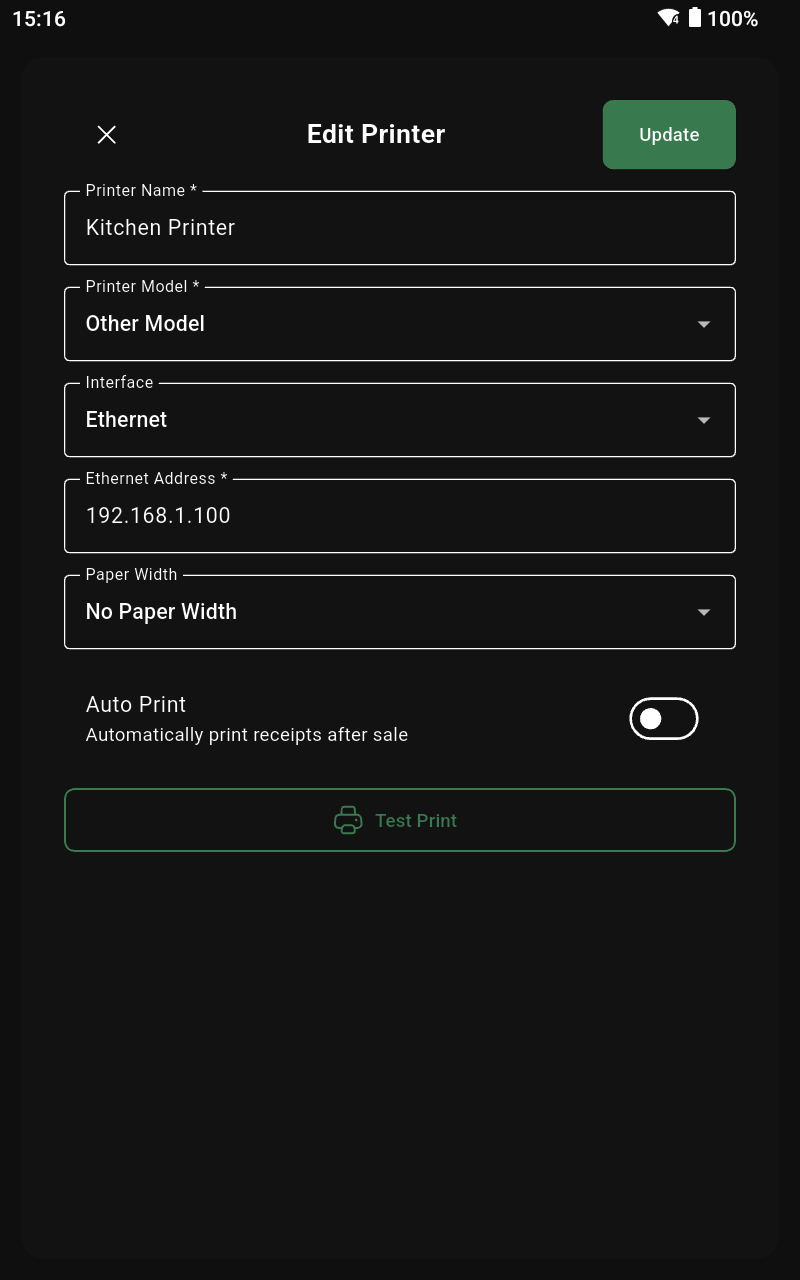 | Adjust connection details or defaults, then tap Update. |
Delete Printer
| Tap the trash icon for the printer you want to remove. |
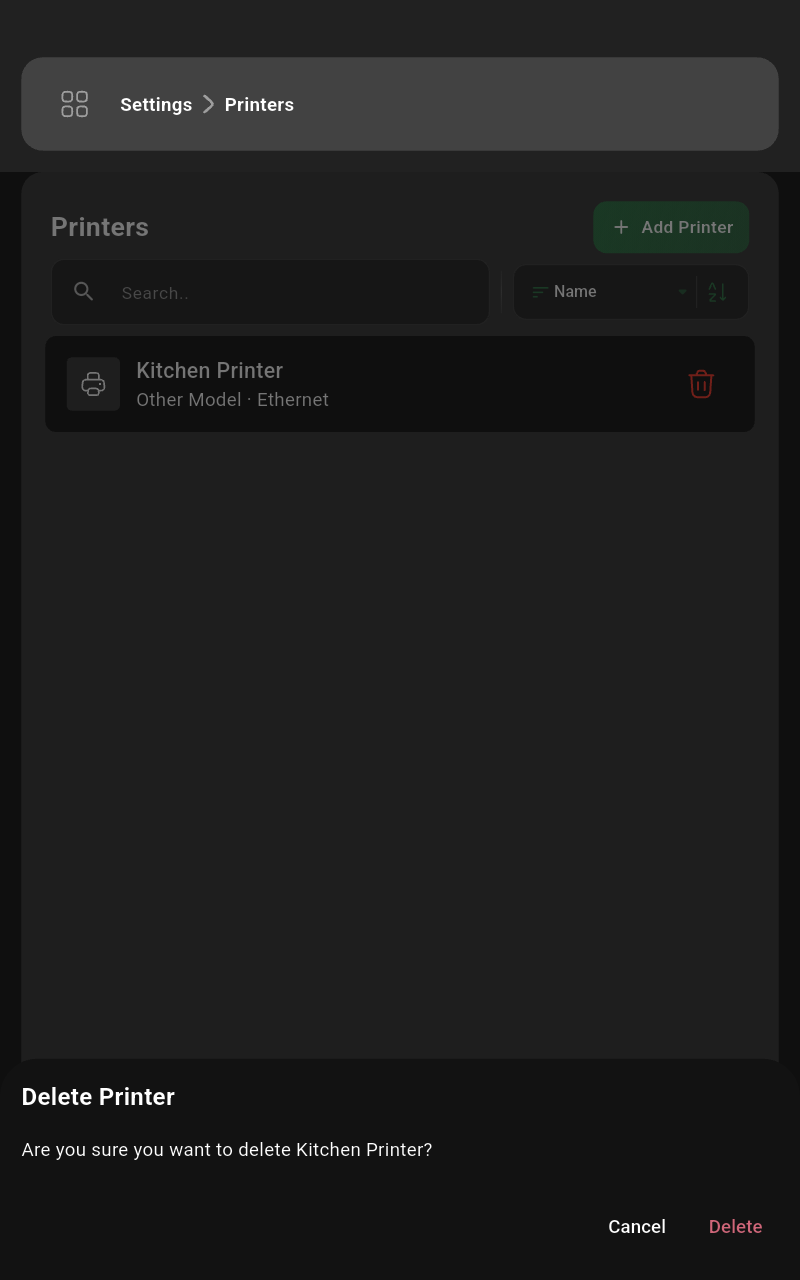 | Confirm by tapping Delete. |
Customer Displays
List of Customer Displays
| Open the side menu from the top-left icon. |
| Tap the Settings button. |
| Select the Customer Displays option. |
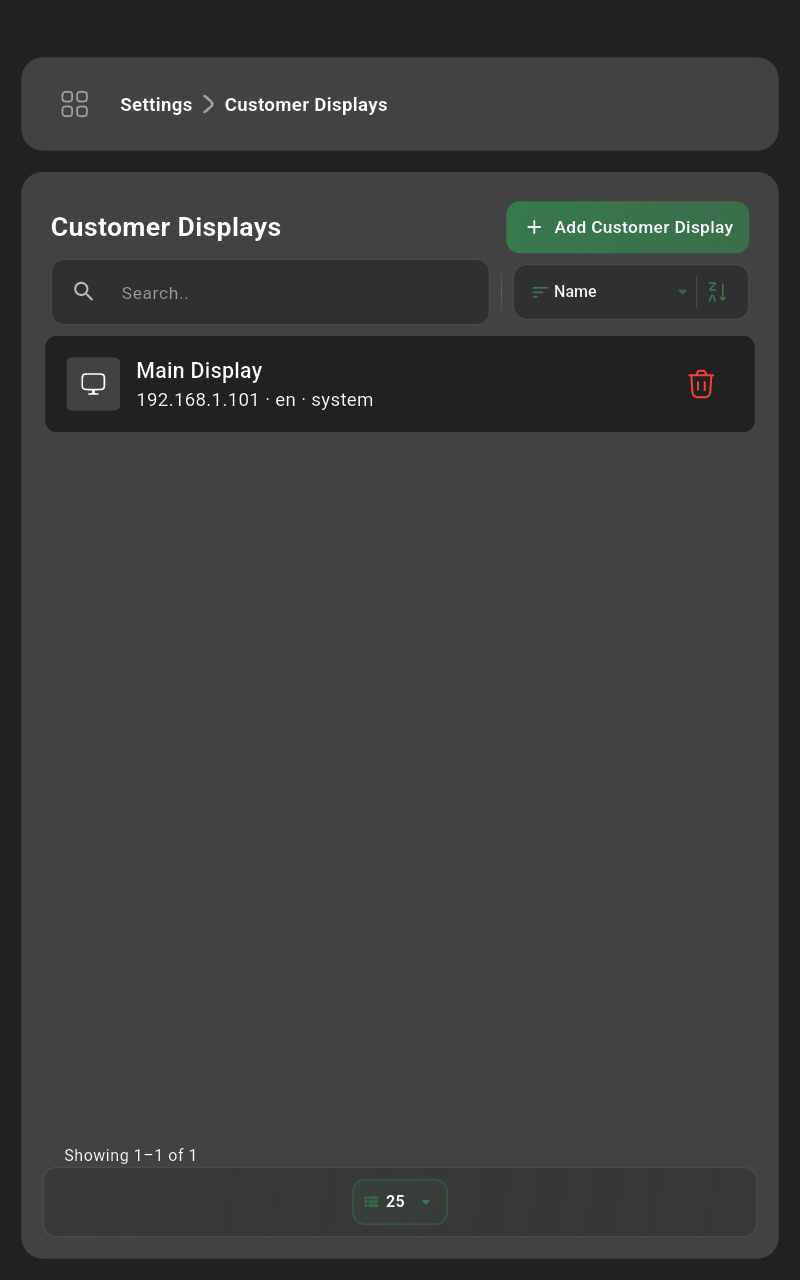 | Review connected displays or add a new one. |
Add Customer Display
| Tap the Add Customer Display button. |
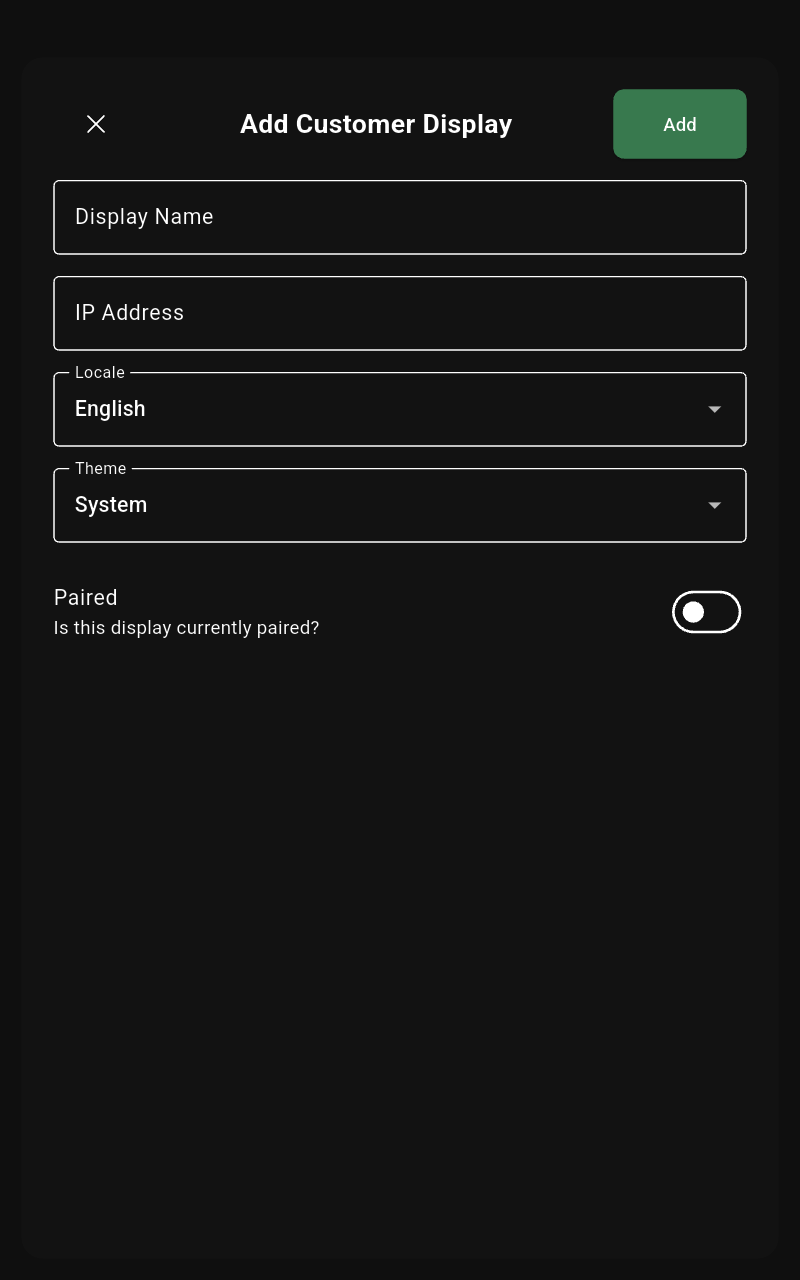 | Enter the display name, connection details, and screen, then tap Add. |
Edit Customer Display
| Select the display you want to update. |
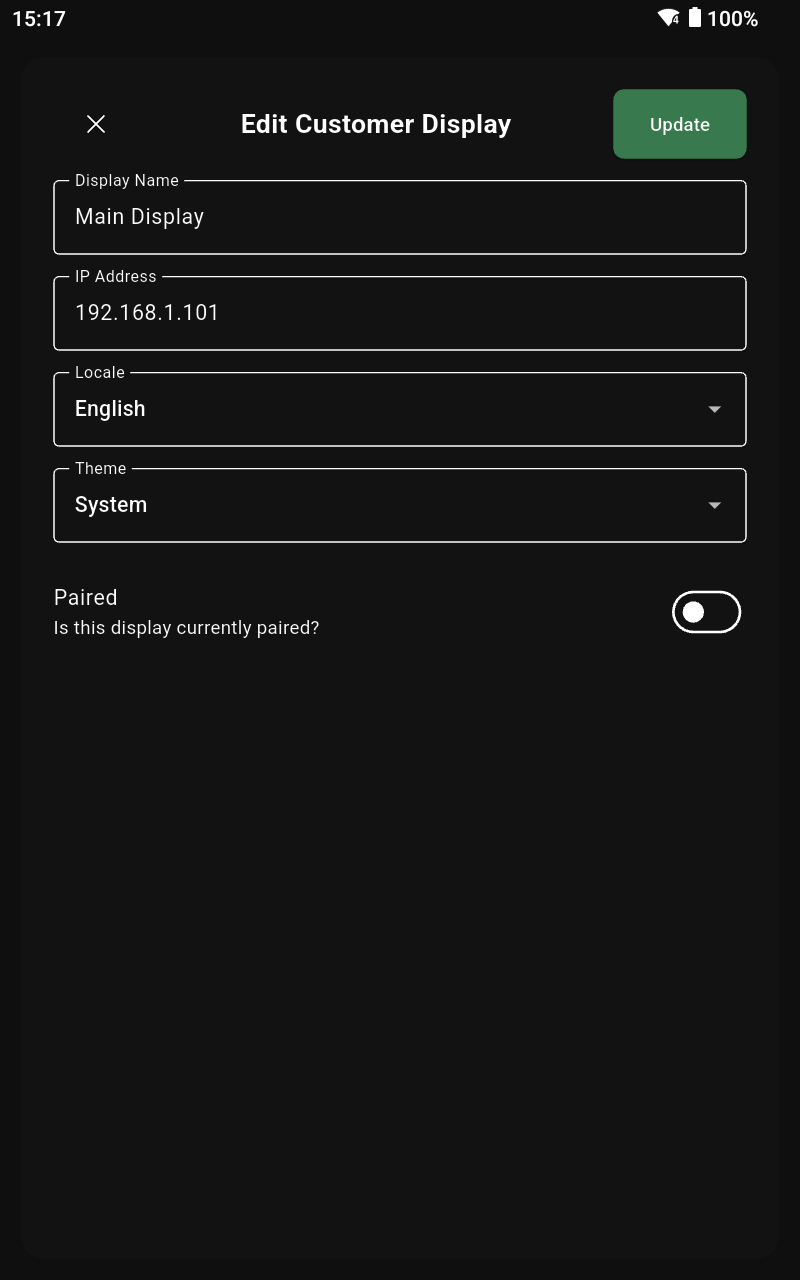 | Adjust the details and tap Update. |
Delete Customer Display
| Tap the trash icon for the customer display you want to remove. |
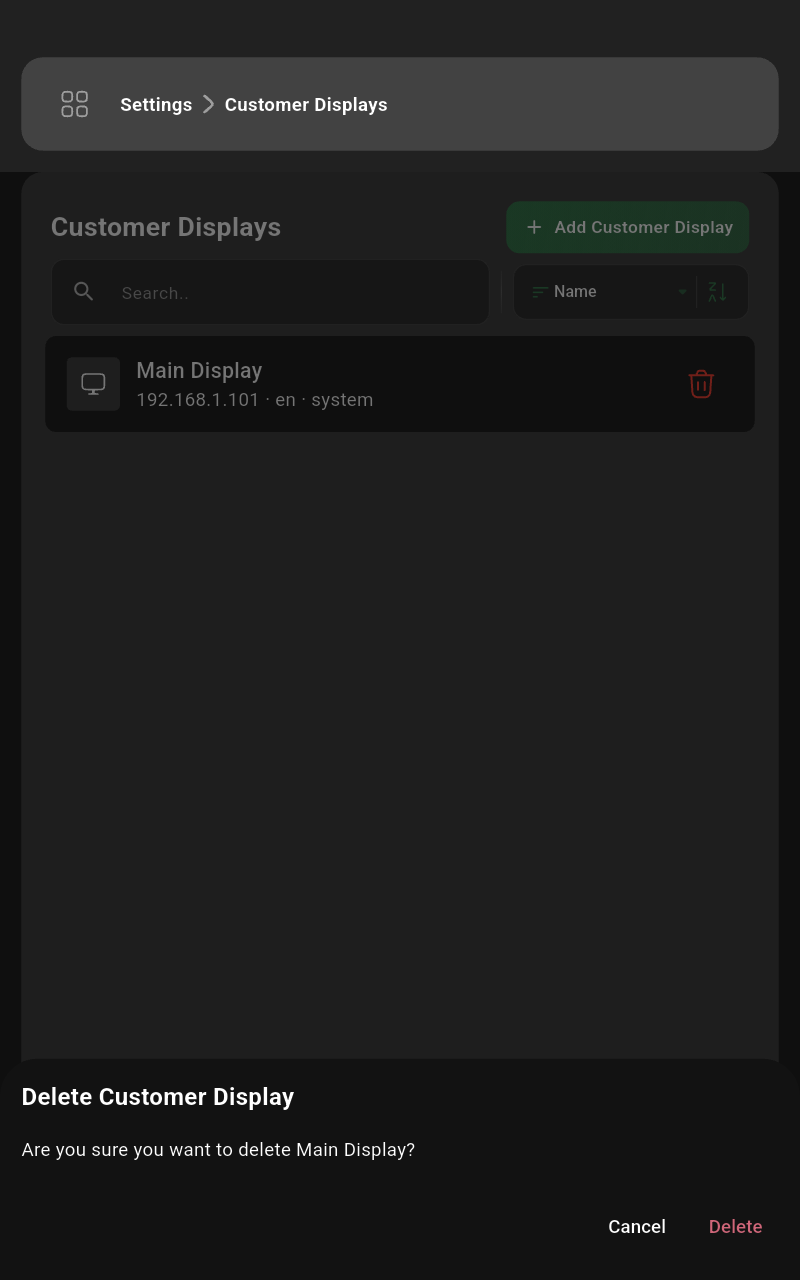 | Confirm by tapping Delete. |
Shift
Current Shift
Open Shift
Close Shift
List of Past Shifts
Detail of Past Shift
Sales
Select Items
Handle Discount / Surcharge
Modify Quantity
Modify Price
Select Customer
Select Payment Method
Complete Sale
Invoices
List of Invoices
Detail of Invoice
Return Invoice